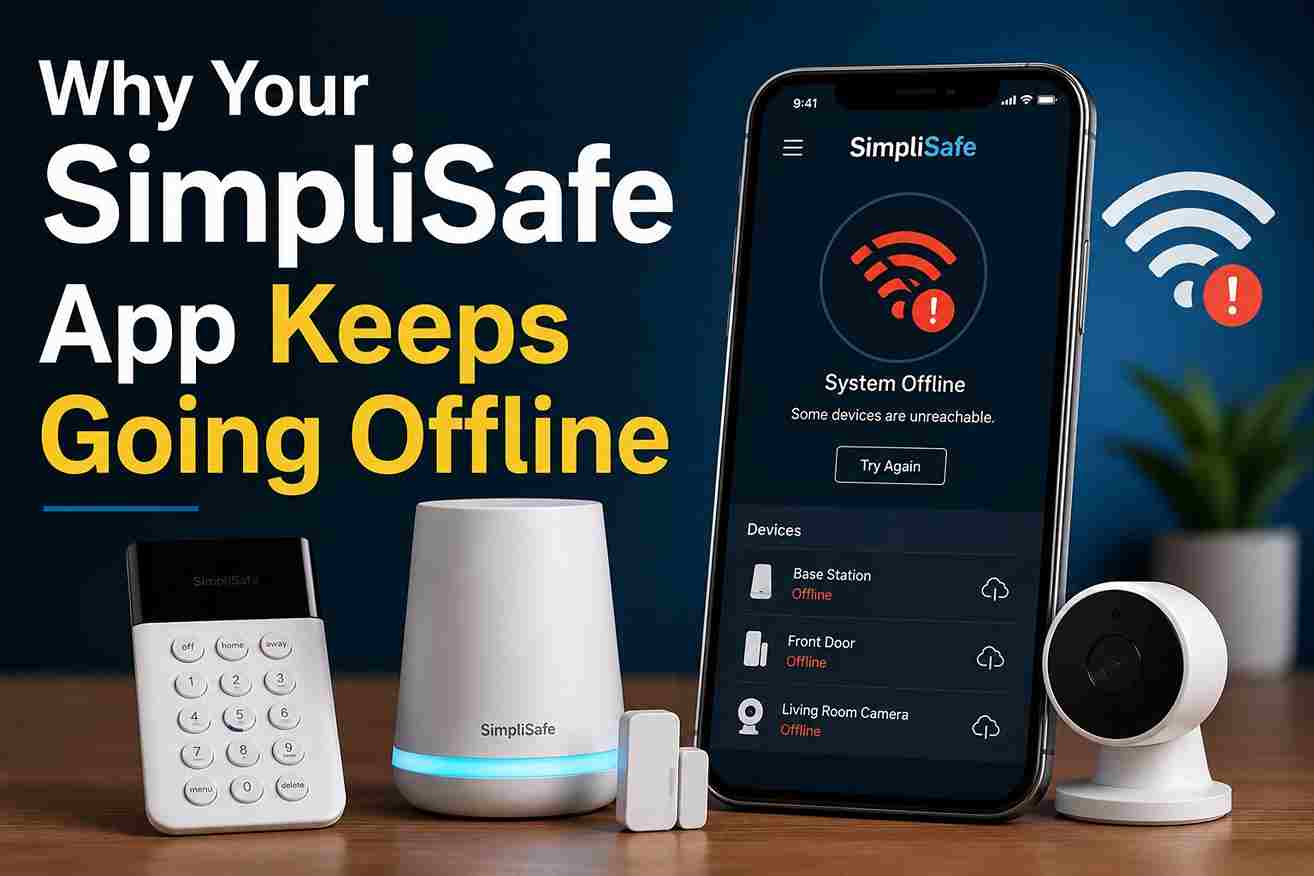
A motion alert from the SimpliSafe App appears on your phone while you’re at work, warning that someone was detected at the front door. You open the live camera feed immediately, only to realize the event occurred several minutes earlier. On another day, the camera refuses to load, and later that week several devices suddenly appear offline even though everything seemed to be working normally the night before.
Problems like these can quickly undermine confidence in a home security system because timely alerts and reliable access are essential during a real security event. When notifications are delayed, cameras fail to connect, or sensors disappear from the app, it’s natural to question whether the system will perform when you need it most.
In many cases, these issues are not caused by faulty hardware. Instead, they stem from connectivity interruptions, device synchronization problems, network instability, outdated software, or app settings that are easy to overlook. Fortunately, most of these problems can be identified and resolved with a few straightforward troubleshooting steps.
This guide covers the most common issues homeowners encounter with the SimpliSafe App, explains why they happen, and walks you through practical solutions to restore reliable performance.
Why the Simplisafe App Matters for Daily Security
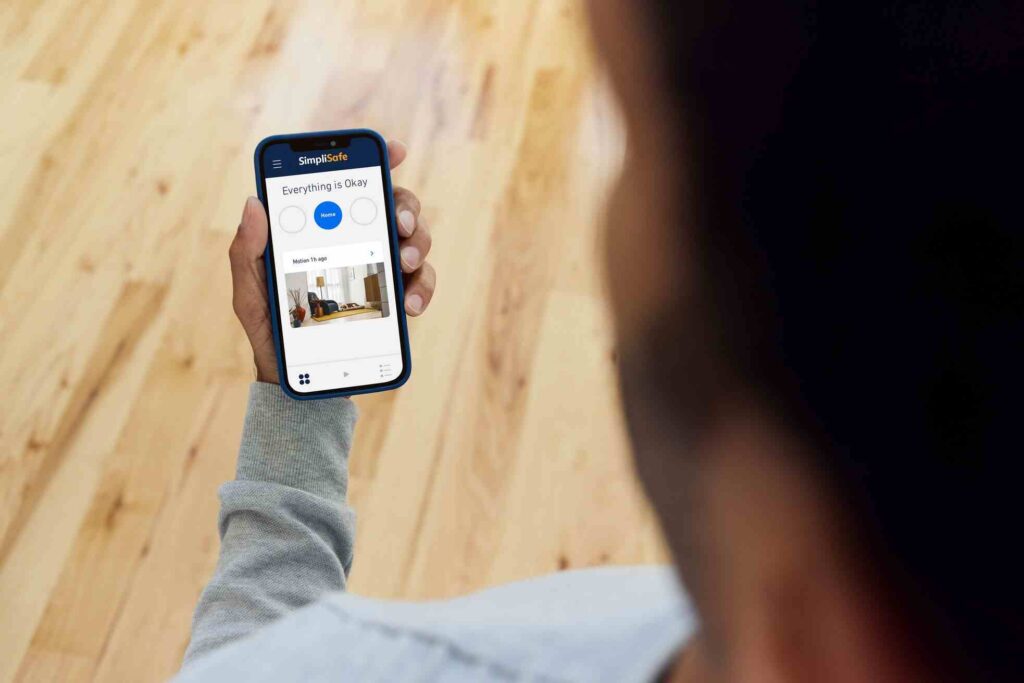
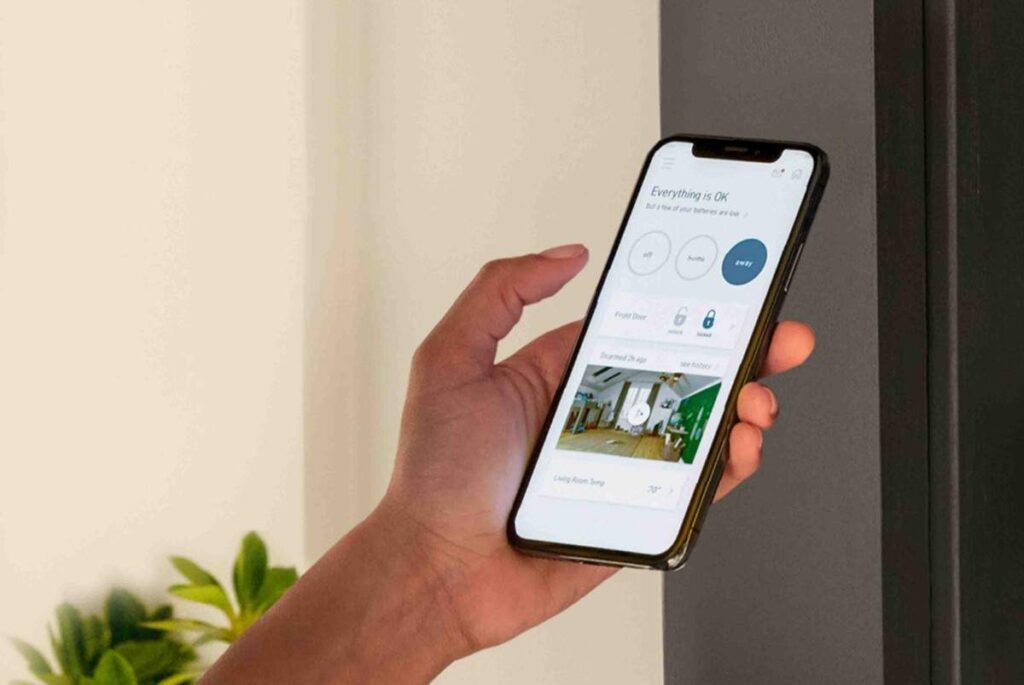
For many users, the SimpliSafe app becomes the primary way they interact with their security system.
Instead of walking to a keypad, homeowners can:
- Arm the system remotely
- Disarm the system when arriving home
- View camera feeds
- Review security events
- Manage alerts
- Check sensor status
- Monitor activity while traveling
Imagine leaving for vacation and wondering whether you armed the system. A glance at the app confirms within seconds.
Likewise, parents often use the system to verify when children arrive home from school. Small conveniences like these make mobile access an important part of modern home security.
Because so much depends on remote access, even minor disruptions can create significant frustration.
Common SimpliSafe Problems Homeowners Experience
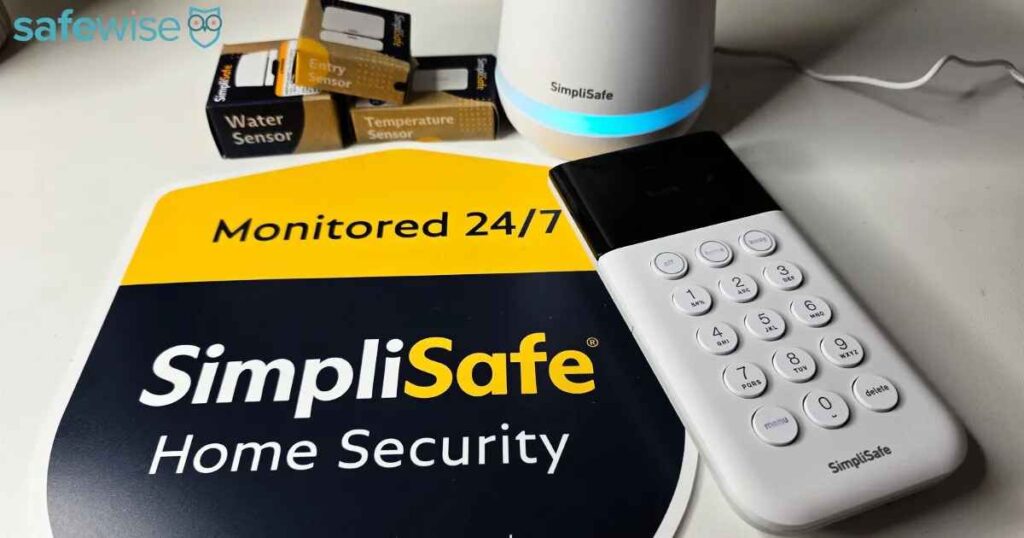
Most reported issues fall into a handful of categories.
Offline Devices
A sensor, camera, or entire base station suddenly disappears from the dashboard.
Common causes include:
- Wi-Fi interruptions
- Dead batteries
- Signal interference
- Firmware problems
Delayed Notifications
Some users receive alerts minutes after an event occurs.
Potential reasons include:
- Internet congestion
- Phone settings
- Notification restrictions
- Server communication delays
Missing Camera Feeds
A camera may show:
- Black screens
- Endless loading circles
- Frozen images
- Playback failures
Bandwidth limitations often play a role.
Login Failures
Users occasionally encounter:
- Incorrect password errors
- Two-factor authentication problems
- Account lockouts
- Session expiration issues
Synchronization Problems
Changes made through one device may not immediately appear elsewhere.
Examples include:
- New users not appearing
- Camera settings not updating
- Arming schedules failing to sync
Update-Related Issues
Software updates sometimes introduce temporary glitches while devices reconnect and re-establish communication.
Understanding which category fits your situation makes troubleshooting much easier.
Simplisafe App Showing Devices Offline
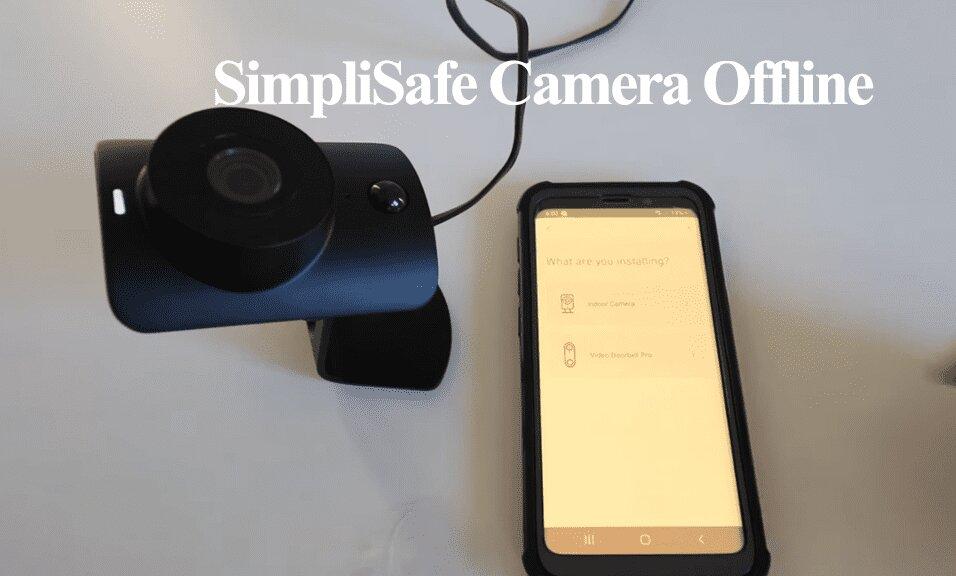
One of the most common complaints involves devices unexpectedly showing as unavailable.
When this happens, the issue is not always the device itself.
Sometimes the problem originates with internet connectivity, while other cases involve communication between sensors and the base station.
How to Verify Internet Connectivity
Before troubleshooting individual devices, check whether the home network is functioning properly.
Start with these steps:
- Confirm internet access on another device.
- Open a website from a smartphone connected to home Wi-Fi.
- Restart the router.
- Wait several minutes for reconnection.
- Refresh the dashboard.
A surprising number of connectivity problems are resolved during this step alone.
Many homeowners spend time troubleshooting sensors when the actual issue is a temporary ISP outage.
When the Base Station Is the Problem
The base station acts as the central communication hub.
If it loses connectivity, multiple devices may appear offline simultaneously.
Signs of a base station issue include:
- Several sensors disappearing together
- Cameras becoming unavailable
- Delayed system updates
- Missing notifications
Try the following:
- Power cycle the base station
- Verify network settings
- Check for firmware updates
- Confirm backup cellular communication is active
If connectivity returns after a restart, the issue was likely temporary rather than hardware-related.
When Individual Sensors Go Offline
Single-device failures usually point toward sensor-specific issues.
Common causes include:
- Weak batteries
- Physical damage
- Signal interference
- Improper installation
Troubleshooting checklist:
- Replace batteries.
- Move metal objects away from the sensor.
- Confirm proper mounting.
- Re-pair the device if necessary.
- Test functionality afterward.
A sensor mounted near large appliances or metal shelving can experience communication issues even when the rest of the system works normally.
Why SimpliSafe App Alerts Arrive Late
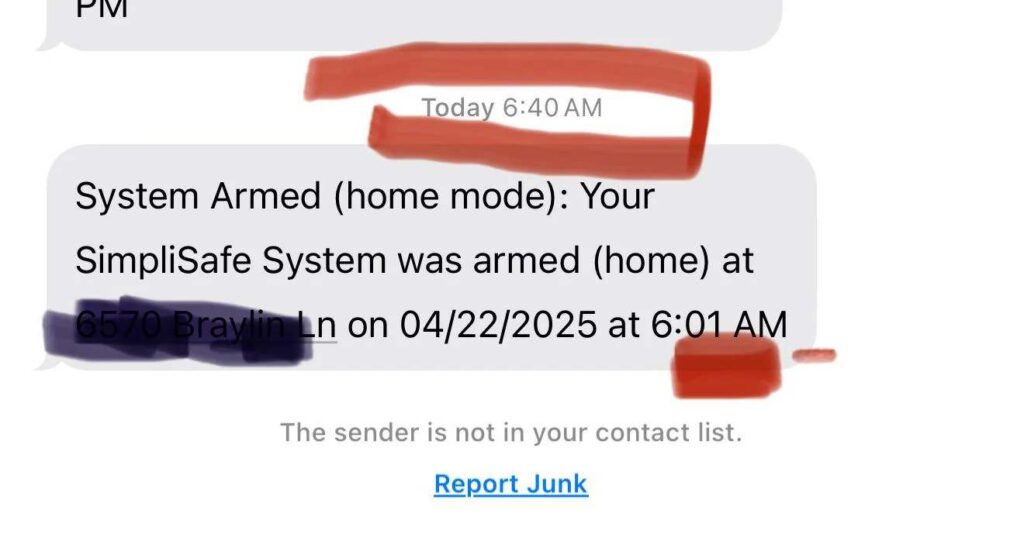
Fast alerts are critical.
If a motion event occurs at 6:01 PM but the notification arrives at 6:40 PM, the usefulness of that information drops significantly.
The SimpliSafe app depends on multiple communication steps before a notification reaches your phone.
The process typically involves:
- Sensor detection
- Base station processing
- Cloud communication
- Notification server delivery
- Mobile operating system processing
- Device display
A delay at any point can slow the entire chain.
Android Notification Delays
Android devices often use battery optimization features to preserve power.
Unfortunately, aggressive power-saving settings may delay alerts.
Check:
- Battery optimization exclusions
- Background activity permissions
- Notification permissions
- Data saver settings
Many users notice immediate improvement after allowing unrestricted background operation.
iPhone Notification Delays
Apple devices generally deliver notifications reliably, but settings can still interfere.
Review:
- Focus modes
- Low Power Mode
- Notification permissions
- Background app refresh
A forgotten Focus mode schedule has caused many homeowners to miss critical alerts.
Testing Alert Speed
Rather than waiting for a real event, test the system intentionally.
A simple test involves:
- Arm the system.
- Trigger a motion sensor.
- Start a timer.
- Measure notification delivery.
Under normal conditions, alerts should arrive quickly.
If delays consistently exceed several minutes, further troubleshooting is justified.
Camera Issues Inside the SimpliSafe App
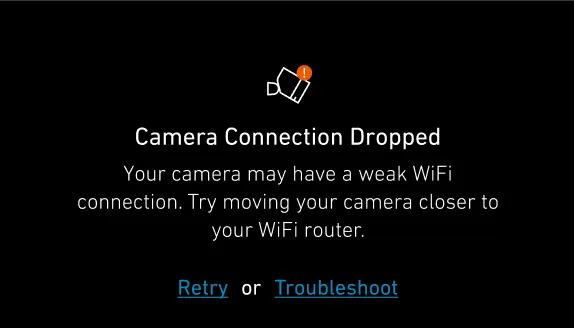
Few problems generate more support requests than camera failures.
Homeowners often assume a camera is broken when the actual issue involves connectivity or bandwidth.
The SimpliSafe app can only display video that successfully reaches the cloud.
Live View Not Loading
A loading screen that never finishes usually points toward communication issues.
Possible causes include:
- Weak Wi-Fi signal
- Router congestion
- Firmware issues
- Temporary server disruptions
Move closer to the router and test again.
If performance improves, signal strength is likely the culprit.
Frozen Video Streams
Frozen images often indicate unstable connections.
Video requires continuous data transfer.
Even brief interruptions can cause:
- Frame drops
- Buffering
- Temporary freezing
Large file downloads elsewhere in the home sometimes create enough congestion to affect video quality.
Recording Delays
Some homeowners notice recordings appearing several minutes after an event.
This typically results from:
- Slow uploads
- Network congestion
- Temporary cloud processing delays
A camera may record properly while taking longer than expected to display footage.
Upload Speed Requirements
Download speed receives most attention, but upload speed matters more for security cameras.
A household may have:
- 300 Mbps download
- 10 Mbps upload
While streaming services perform well, camera performance may suffer if upload capacity becomes saturated.
Running an internet speed test can reveal hidden bottlenecks.
Signal Strength Matters
Distance from the router affects camera reliability.
Common obstacles include:
- Brick walls
- Concrete foundations
- Metal surfaces
- Utility rooms
Wi-Fi signal loss increases as obstacles accumulate.
Mesh networking systems often improve camera stability in larger homes.
Camera Firmware Updates
Manufacturers periodically release updates that address:
- Connectivity bugs
- Security improvements
- Performance enhancements
- Video reliability issues
Keeping devices updated reduces the likelihood of recurring camera problems.
Simplisafe App Login and Account Problems
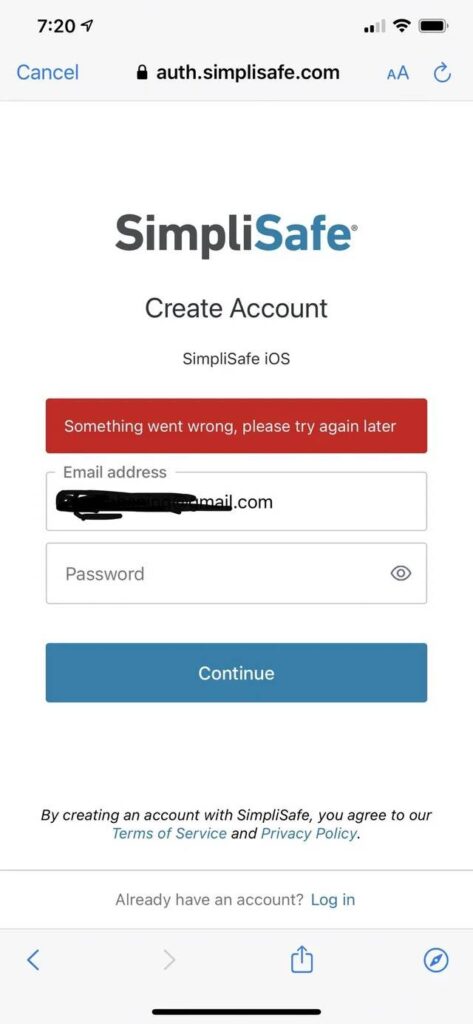
Access issues can be alarming because they prevent homeowners from monitoring their system.
Fortunately, most login problems are relatively straightforward.
Forgotten Passwords
Password reset tools resolve the majority of login failures.
When creating a replacement password:
- Avoid reusing old passwords
- Use a password manager
- Enable two-factor authentication
Strong credentials improve both convenience and security.
Two-Factor Authentication Problems
Verification codes occasionally fail to arrive.
Potential causes include:
- Poor cellular coverage
- Spam filtering
- Delayed text messages
- Incorrect account information
Waiting a few minutes before requesting another code often solves the issue.
Server Outages
Sometimes the issue is not on your end.
Cloud-based platforms occasionally experience temporary service disruptions.
Signs include:
- Multiple login failures
- Devices appearing unavailable
- Widespread user reports
- Simultaneous system errors
Checking official status updates can save time during troubleshooting.
Account Lockouts
Repeated failed login attempts may trigger security protections.
If this occurs:
- Stop attempting additional logins.
- Reset credentials.
- Verify account information.
- Contact support if access remains blocked.
Security lockouts are designed to prevent unauthorized access and usually resolve quickly once identity verification is completed.
How to Fix SimpliSafe App Connectivity Problems
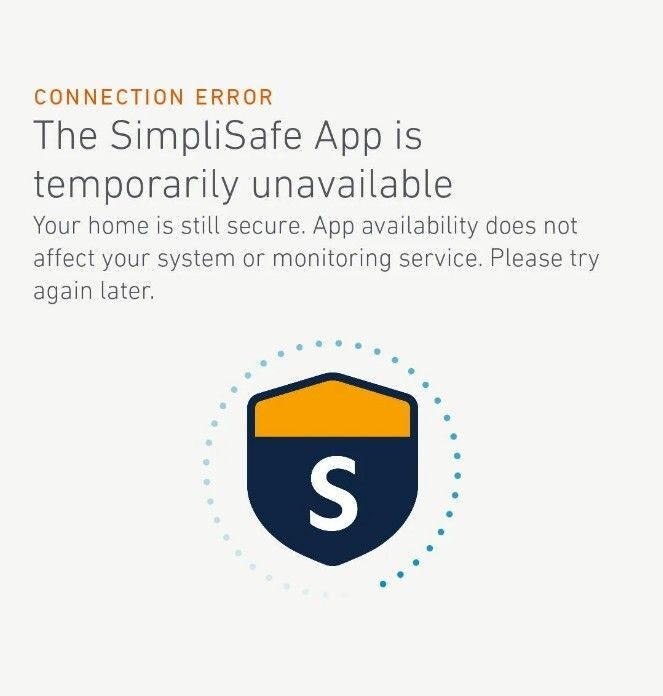
Many connectivity problems share similar solutions.
Working through them methodically prevents unnecessary frustration.
Step 1: Restart the System
Start with the simplest fix.
Restart:
- Phone
- Router
- Base station
Temporary communication errors often disappear after a reboot.
Step 2: Check Router Performance
Look for signs of network instability:
- Slow browsing
- Frequent disconnects
- Streaming interruptions
- High latency
An aging router can create symptoms that resemble app failures.
Step 3: Clear App Cache
Corrupted cached data occasionally causes unusual behavior.
Clearing cached files can resolve:
- Loading problems
- Display glitches
- Synchronization issues
Android devices generally provide direct cache-clearing options.
Step 4: Reinstall the Application
If issues persist, remove and reinstall the SimpliSafe app.
This process refreshes:
- Local files
- Authentication tokens
- Cached settings
Always confirm account credentials before uninstalling.
Step 5: Update Firmware
Outdated firmware remains a common source of connectivity problems.
Check for updates affecting:
- Cameras
- Base stations
- Sensors
- Network equipment
Many recurring issues disappear after all devices are running the latest software versions.
Signs the Problem Is Not the App

Before spending hours troubleshooting software, it is worth considering whether the problem originates somewhere else.
Many homeowners assume the mobile application is responsible whenever something stops working. In reality, internet equipment, wireless coverage, and aging hardware are often the true causes.
ISP Outages
Internet providers occasionally experience outages that affect entire neighborhoods.
Common signs include:
- Cameras suddenly disconnecting
- Multiple smart home devices going offline
- Websites loading slowly
- Streaming services buffering unexpectedly
If your security system and other connected devices stop communicating at the same time, the internet connection deserves attention first.
Weak Wi-Fi Coverage
Large homes frequently have wireless dead zones.
For example, a camera mounted above a detached garage may receive only a weak signal even though a nearby smartphone appears connected.
Symptoms of poor coverage include:
- Intermittent camera access
- Delayed video loading
- Random disconnects
- Inconsistent performance throughout the day
A Wi-Fi analyzer app can reveal signal strength problems that are otherwise difficult to identify.
Aging Routers
Many homeowners continue using routers that are five to eight years old.
While these devices may still provide internet access, they often struggle with modern smart home ecosystems.
A home containing:
- Security cameras
- Video doorbells
- Smart locks
- Smart TVs
- Voice assistants
places significantly more demand on a network than a typical household did a decade ago.
Upgrading network hardware frequently solves recurring connectivity complaints.
Device Hardware Failures
Although less common, hardware failures do occur.
Examples include:
- Failing cameras
- Damaged sensors
- Defective power supplies
- Worn batteries
If one device repeatedly experiences issues while everything else works normally, the hardware itself may require replacement.
When to Contact SimpliSafe Support

Most connectivity and notification issues can be resolved at home. However, some situations warrant direct assistance.
Repeated Disconnects
If devices continue disconnecting after:
- Router restarts
- Firmware updates
- Battery replacements
- Reinstallation attempts
Additional troubleshooting may be necessary.
Repeated failures often indicate deeper communication problems.
Hardware Failures
Support should be contacted when hardware shows signs of failure, such as:
- Cameras that never reconnect
- Sensors that stop responding entirely
- Base stations that fail to communicate
- Power-related issues
These symptoms are less likely to be caused by software.
Persistent Notification Problems
Some homeowners experience delayed or missing alerts despite strong internet connections and proper settings.
If troubleshooting fails to improve performance, support representatives can review account-level diagnostics.
Account Access Issues
Authentication problems occasionally require direct intervention.
Examples include:
- Locked accounts
- Verification failures
- Repeated password reset errors
- User permission conflicts
Support teams can verify account status and restore access when necessary.
Information to Gather Before Calling
Collecting information beforehand speeds up the process.
Helpful details include:
- Device model information
- Error messages
- Firmware versions
- Internet provider information
- Approximate time issues occurred
The more specific the information, the faster support can identify the root cause.
Preventing Future SimpliSafe App Problems
The best troubleshooting strategy is preventing issues before they occur.
A few simple maintenance habits significantly reduce the likelihood of future disruptions.
Maintain Your Router
Homeowners often ignore network equipment until something breaks.
Instead:
- Reboot occasionally
- Install firmware updates
- Replace outdated hardware
- Monitor performance
Network reliability directly affects security system reliability.
Keep Firmware Updated
Manufacturers release updates for a reason.
Updates commonly address:
- Stability improvements
- Security vulnerabilities
- Connectivity bugs
- Device compatibility issues
Ignoring updates can leave known problems unresolved.
Follow Battery Replacement Schedules
Many sensors depend on batteries for operation.
Waiting until batteries completely fail can create unnecessary disruptions.
Consider:
- Checking battery status quarterly
- Replacing weak batteries proactively
- Keeping spare batteries available
This approach minimizes unexpected outages.
Test Devices Regularly
Testing verifies that every component still functions correctly.
Monthly checks should include:
- Entry sensors
- Motion sensors
- Cameras
- Alarm functions
- Notification delivery
Small problems become easier to fix when discovered early.
FAQ
Why does the SimpliSafe app keep showing devices offline?
The most common causes include internet interruptions, weak Wi-Fi coverage, dead batteries, outdated firmware, or communication problems between sensors and the base station. Restarting network equipment and verifying connectivity usually helps identify the issue.
Why are SimpliSafe notifications delayed?
Delayed notifications often result from network latency, battery-saving settings on mobile devices, notification restrictions, or temporary communication delays between the security system and cloud servers.
Can the SimpliSafe app work without Wi-Fi?
The SimpliSafe app requires internet access on the mobile device to communicate with the system remotely. Depending on system configuration, some monitoring features may continue through cellular backup even if home Wi-Fi is unavailable.
How do I reconnect an offline SimpliSafe sensor?
Start by checking the battery. Then verify that the sensor remains within communication range of the base station. If necessary, remove the sensor from the system and pair it again according to setup instructions.
Why is my SimpliSafe camera not loading live video?
Weak Wi-Fi signals, insufficient upload bandwidth, router congestion, outdated firmware, or temporary service interruptions can prevent live video from loading properly.
How often should I test my SimpliSafe system?
A monthly functional test is recommended. Cameras, sensors, notifications, and alarm functions should all be verified regularly to ensure reliable operation.
Conclusion
Most issues involving the SimpliSafe app fall into a few predictable categories: offline devices, delayed alerts, camera connectivity problems, login issues, or network-related disruptions. While these problems can be frustrating, they are often easier to solve than homeowners initially expect.
The fastest troubleshooting steps remain surprisingly simple:
- Verify internet connectivity
- Restart the router
- Reboot the base station
- Check batteries
- Update firmware
- Review notification settings
If those actions do not resolve the problem, examining Wi-Fi coverage, account settings, and hardware health typically reveals the next clue.
A security system performs best when it is tested regularly rather than only during emergencies. By maintaining your network, keeping devices updated, and reviewing system settings periodically, you can reduce disruptions and ensure alerts arrive when they matter most. The goal is not simply to receive notifications—it is to trust that your home security system will respond reliably when you need it.


Leave a Reply