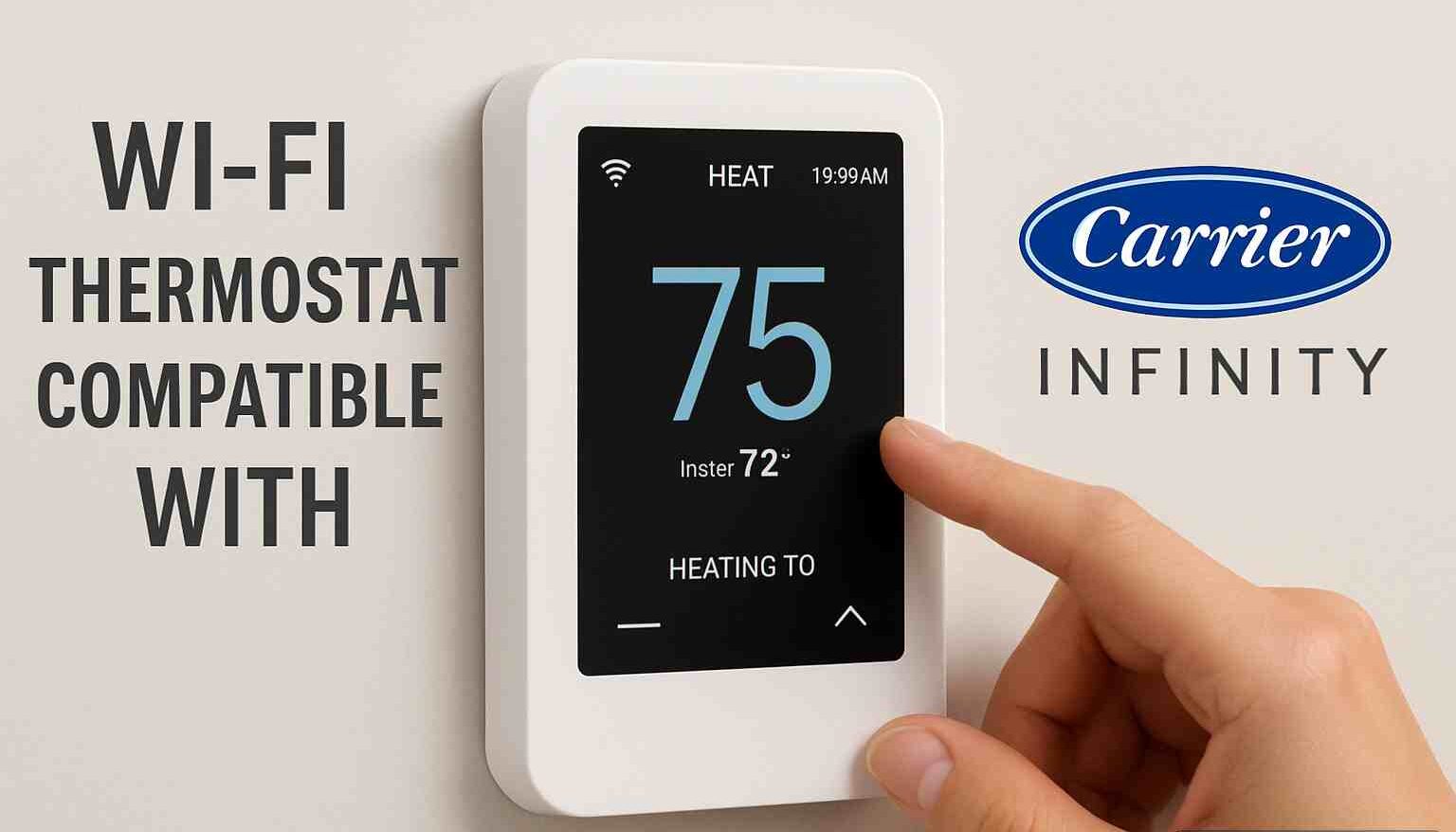
You open the thermostat app while leaving work and try to cool the house before you arrive home. Instead of showing the current temperature, the app displays an offline message. Your phone connects to Wi-Fi, your laptop works normally, and streaming services load without a problem. Yet the carrier smart thermostat refuses to communicate with the network.
This situation is more common than many homeowners realize. A thermostat that loses internet access can prevent remote temperature adjustments, delay notifications, and interrupt smart-home automation routines. During extreme summer heat or winter cold, losing remote access can quickly become frustrating.
The good news is that most connectivity problems are not caused by hardware failure. In many cases, the issue comes from a router setting, a weak signal, outdated firmware, or a simple configuration mistake. Some fixes take less than five minutes, while others require a more detailed review of your network setup.
This guide walks through the troubleshooting process step by step. You’ll learn how to identify the cause, understand common error messages, reconnect the device properly, and reduce the chances of future connection problems.
Why a Carrier Smart Thermostat Loses Wi-Fi Connection

Many homeowners assume the thermostat itself is defective when it suddenly goes offline. In reality, several different factors can interrupt communication between the thermostat and your home network.
Temporary Router Issues
Routers run continuously, often for months without restarting. Over time, memory errors, software glitches, or overheating can affect performance.
Common symptoms include:
- Devices randomly disconnecting
- Slow network response
- Smart devices showing offline status
- Failed app communication
A simple router reboot often resolves these temporary problems.
Estimated troubleshooting time: 2–3 minutes.
Weak Wireless Signal
Signal strength matters more than many homeowners realize.
Consider a typical home layout:
- Router located in a basement
- Thermostat installed on the main floor
- Multiple walls between devices
Even if phones and laptops appear connected, smart-home devices often have smaller antennas and can struggle with weak coverage.
Signs of weak signal include:
- Frequent disconnections
- Delayed app updates
- Connection failures during certain times of day
Incorrect Network Settings
Homeowners frequently change routers or internet providers and forget to reconnect smart devices afterward.
Common mistakes include:
- Changing Wi-Fi passwords
- Renaming the network
- Switching security settings
- Disabling compatibility modes
Even a small change can interrupt thermostat connectivity.
Firmware Problems
Firmware is the software that runs inside the thermostat.
Like phones and computers, thermostats occasionally require updates to:
- Improve stability
- Fix bugs
- Improve security
- Maintain compatibility with modern routers
Outdated firmware can create communication problems that seem like network failures.
Before You Start Troubleshooting Your Thermostat

Before changing settings or performing resets, verify a few basics.
Check Internet Service Status
A surprising number of troubleshooting sessions start with an ISP outage.
Quick checklist:
- Can phones access websites?
- Can other smart devices connect?
- Is the modem showing warning lights?
- Has the internet provider reported outages?
Spend two minutes checking these items before moving deeper into diagnostics.
Verify Thermostat Power
The thermostat requires consistent power from the HVAC system.
Look for:
- Blank display
- Flickering screen
- Restart loops
- Error codes
If the display appears unstable, inspect:
- Circuit breakers
- HVAC power switches
- Furnace service disconnects
A power issue may look like a Wi-Fi problem even though the network is functioning correctly.
Confirm Wi-Fi Compatibility
Many smart thermostats operate best on:
- 2.4 GHz networks
- WPA2 security
- Standard SSID broadcasting
Some modern routers default to advanced settings that can create compatibility issues.
Review your router documentation if compatibility concerns arise.
How to Reconnect a Carrier Smart Thermostat to Wi-Fi

If basic checks don’t solve the issue, begin the reconnection process.
Restart the Thermostat
Restarting clears temporary software problems.
Typical process:
- Access thermostat settings.
- Locate the restart or reboot option.
- Confirm restart.
- Wait 2–5 minutes.
Many connection issues disappear after a clean reboot.
A Carrier smart thermostat experiencing temporary software glitches often reconnects immediately after restarting.
Restart the Router
Next, restart networking equipment.
Recommended order:
- Unplug modem.
- Unplug router.
- Wait 60 seconds.
- Plug modem back in.
- Wait for full synchronization.
- Restart router.
Allow 5–10 minutes for all services to stabilize.
Forget and Reconnect the Network
Saved credentials sometimes become corrupted.
Reconnect using these steps:
- Open network settings.
- Remove saved Wi-Fi connection.
- Scan available networks.
- Select your network.
- Enter the password carefully.
- Confirm connection.
Many homeowners accidentally enter passwords incorrectly due to case-sensitive characters.
Update Firmware
Firmware updates often solve persistent connectivity problems.
Check for:
- Stability improvements
- Security patches
- Router compatibility updates
A carrier smart thermostat running older firmware may struggle with newer networking hardware, which is one reason many homeowners prioritize Matter-compatible smart home systems when upgrading their connected-home setup.
Reconnect Using the Mobile App
Sometimes the thermostat appears connected while the app remains disconnected.
Try:
- Logging out of the app.
- Closing the application.
- Restarting the phone.
- Logging in again.
- Re-syncing the device.
This process resolves many account-related connection issues.
Carrier Smart Thermostat Error Messages and What They Mean

Understanding error messages saves significant troubleshooting time.
Offline Errors
Offline messages typically indicate:
- Lost Wi-Fi connection
- Router issues
- ISP interruption
- Signal loss
Start by checking network availability.
Authentication Errors
Authentication errors usually point toward password problems.
Possible causes include:
- Incorrect password
- Router security changes
- Credential corruption
Re-entering network credentials often resolves the issue.
Network Discovery Errors
Discovery errors occur when the thermostat cannot locate available networks.
Common causes:
- Hidden SSID
- Router malfunction
- Distance from access point
App Connection Failures
Sometimes the thermostat is online, but cloud communication fails.
Possible reasons:
- Account synchronization issues
- Mobile app bugs
- Server maintenance
Verify connection status directly from the thermostat display.
ACarrierr smart thermostat can remain fully functional even when the app temporarily loses communication.
Wi-Fi Settings That Commonly Cause Problems

Network configuration is often overlooked during troubleshooting.
2.4 GHz vs 5 GHz Networks
Many smart devices work best on 2.4 GHz frequencies.
Comparison:
| Feature | 2.4 GHz | 5 GHz |
| Range | Longer | Shorter |
| Speed | Moderate | Faster |
| Wall Penetration | Better | Weaker |
If setup repeatedly fails, verify compatibility requirements.
Guest Networks
Guest networks frequently block communication between devices.
Problems may include:
- Limited device discovery
- Cloud connection failures
- App synchronization issues
Use the primary network whenever possible.
Hidden SSIDs
Some homeowners hide network names for security.
While effective in some situations, hidden networks can cause setup failures.
Broadcasting the SSID often simplifies device pairing.
Router Security Settings
Aggressive security settings occasionally interfere with smart-home equipment.
Review:
- WPA mode
- Firewall rules
- Access control lists
- Device filtering
A carrier smart thermostat may fail authentication if security settings become overly restrictive.
When the Problem Is Not the Thermostat

Not every connection issue originates inside the thermostat.
ISP Outages
Internet providers occasionally experience:
- Regional outages
- Equipment failures
- Maintenance windows
During outages, local Wi-Fi may still appear operational.
Router Hardware Failures
Routers age over time.
Warning signs include:
- Frequent restarts
- Overheating
- Connection drops
- Inconsistent wireless coverage
Routers older than five years may struggle with modern smart-home traffic.
Mesh Network Conflicts
Mesh systems improve coverage but can introduce roaming complications.
Some devices:
- Connect to distant nodes
- Switch nodes unexpectedly
- Lose authentication during handoffs
Adjusting node placement often improves stability.
Advanced Troubleshooting Steps

If basic solutions fail, move to advanced diagnostics.
Factory Reset Process
Factory resets erase saved configuration data.
Before proceeding:
- Record settings
- Save account information
- Verify Wi-Fi credentials
After reset:
- Reconfigure device.
- Reconnect network.
- Reinstall app if necessary.
Use this option only after other solutions fail.
Checking Firmware Versions
Compare installed firmware against the latest available version.
Look for:
- Bug fixes
- Security updates
- Compatibility improvements
Many persistent issues disappear after updating.
Reviewing Router Logs
Router logs provide valuable clues.
Look for entries showing:
- Authentication failures
- DHCP errors
- Device disconnects
- Signal interruptions
Advanced users can often identify recurring patterns quickly.
A carrier smart thermostat that repeatedly disconnects at specific times may reveal useful clues in network logs.
How to Prevent Future Wi-Fi Connection Problems

Preventive maintenance reduces future disruptions.
Router Placement
Ideal router placement:
- Central location
- Elevated position
- Away from metal objects
- Away from microwaves
- Away from large appliances
Poor placement remains one of the most common causes of signal issues.
Software Updates
Check periodically for:
- Router updates
- App updates
- Thermostat firmware updates
Keeping software current improves stability.
A Carrier smart thermostat generally performs more reliably when all connected systems receive regular updates.
Network Maintenance
Monthly maintenance checklist:
- Restart router
- Check firmware status
- Remove unused devices
- Review security settings
- Test signal strength
Five minutes of maintenance can prevent hours of troubleshooting later.
When to Contact Carrier Support

If you’ve completed all troubleshooting steps and connectivity problems persist, professional assistance may be necessary.
Contact support if:
- Device repeatedly loses connection
- Firmware updates fail
- Factory reset does not help
- Display shows hardware errors
- Wi-Fi module appears defective
Before calling:
Prepare:
- Model number
- Firmware version
- Router model
- Error messages
- Troubleshooting history
This information helps support teams diagnose problems faster.
A Carrier smart thermostat with persistent failures after complete troubleshooting may require repair or replacement.
FAQ
Why does my thermostat keep disconnecting from Wi-Fi?
Weak signal strength, router instability, firmware issues, and network configuration changes are the most common causes.
Does a Carrier thermostat work only on 2.4 GHz networks?
Many models are optimized for 2.4 GHz networks because they provide better range and wall penetration.
How do I reset a Carrier thermostat?
Most models include a reset option within system settings. Consult the model-specific manual before performing a factory reset.
Can a router update disconnect a thermostat?
Yes. Security changes, firmware upgrades, and altered network settings can sometimes break existing connections.
Why is the thermostat online but the app shows offline?
The issue may involve cloud synchronization, account authentication, or mobile app communication rather than the thermostat itself.
How often should thermostat firmware be updated?
Check for updates every few months or whenever connectivity issues appear.
Can weak Wi-Fi affect HVAC performance?
The heating and cooling system usually continues operating locally, but remote access and automation features may stop working.
When should I replace a thermostat instead of repairing it?
Consider replacement when hardware failures persist, repairs become expensive, or the device no longer receives firmware support.
Can changing internet providers affect thermostat connectivity?
Yes. New routers, passwords, and security settings often require reconnecting smart-home devices.
How long should troubleshooting take?
Basic diagnostics usually take 10–20 minutes. Advanced troubleshooting may require 30–60 minutes.
Conclusion
Most Wi-Fi connection problems come from a small group of issues: weak signals, router configuration changes, firmware problems, ISP outages, or outdated networking equipment. Rather than immediately assuming hardware failure, start with the simplest checks. Verify internet access, confirm power, restart equipment, reconnect the network, and review router settings before moving to advanced diagnostics.
Following a structured troubleshooting process saves time and prevents unnecessary resets. In many homes, the solution takes less than fifteen minutes. If problems continue after completing every step in this guide, contacting support with detailed troubleshooting information is the next logical move. A properly configured Carrier smart thermostat should maintain a stable connection and provide reliable remote control of your home’s comfort system year-round.

Leave a Reply