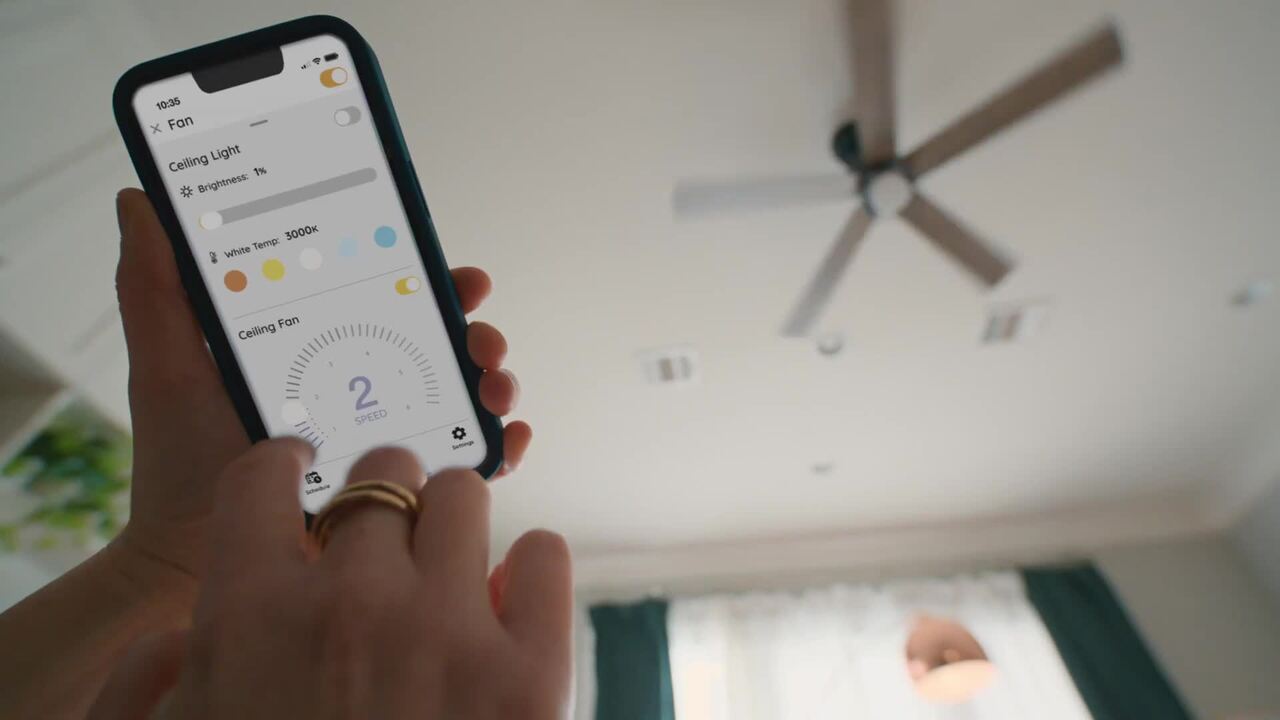
You install a new ceiling fan, connect the power, download the app, and expect the setup process to take only a few minutes. Instead, the fan refuses to appear in the device list, the pairing screen spins endlessly, and every connection attempt ends with an error message. It is frustrating, especially when everything seems to be wired correctly. This situation is surprisingly common with Hampton Bay smart ceiling fans.
In many homes, the problem is not a defective fan at all. The issue usually comes down to Wi-Fi settings, router compatibility, pairing mistakes, mobile app permissions, or communication problems between the fan receiver and the app.
As someone who has helped homeowners troubleshoot dozens of smart home installations, I can say that most connectivity problems can be fixed without replacing any hardware. Often, a simple adjustment such as switching to a 2.4 GHz network or resetting pairing mode solves the issue within minutes.
This guide walks through the complete setup process, explains why connection failures occur, and provides practical solutions to get your smart ceiling fan online and working with voice assistants, automation routines, and remote controls.
Understanding How Hampton Bay Smart Ceiling Fans Connect

Before troubleshooting, it helps to understand how the system communicates.
A smart ceiling fan typically uses three separate communication paths:
- Fan receiver to fan motor
- Mobile app to Wi-Fi network
- Smart home platform to cloud services
If any one of these connections fails, setup problems can occur.
Wi-Fi Requirements
Most smart ceiling fans rely on a 2.4 GHz wireless network during setup.
Many homeowners assume that because their phone is connected to Wi-Fi, the fan should connect automatically. Unfortunately, modern routers often combine 2.4 GHz and 5 GHz networks under a single name, which can create pairing problems.
Check these requirements:
- Stable 2.4 GHz network
- WPA2 security
- Strong signal near the fan
- Internet access during setup
A weak signal is one of the most overlooked causes of failed pairing.
For example, a homeowner may install a fan in an upstairs bedroom while the router sits inside a basement utility room. The phone still works because it has stronger wireless hardware, but the fan struggles to maintain communication.
App Requirements
The ceiling fan app needs more than just a login account.
During setup, verify:
- Bluetooth enabled
- Location services enabled
- Local network permissions granted
- Latest app version installed
Many pairing failures occur because mobile operating systems block device discovery permissions. Similar setup issues can also occur with smart thermostats, where having the correct Honeywell thermostat setup instructions helps simplify the configuration process.
This simple step solves more pairing failures than most people expect.
Remote and Receiver Communication
The receiver installed inside the fan canopy acts as the brain of the system.
Even if the Wi-Fi connection fails, the receiver may still communicate successfully with the handheld remote.
If the remote works but app control does not, the issue is usually related to network configuration rather than electrical installation.
Hampton Bay Setup Checklist Before Pairing

Before attempting any smart fan setup, verify a few fundamentals.
Skipping these checks often wastes time later.
Verify Power Supply
Start with the basics.
Confirm:
- Circuit breaker is on
- Wall switch is on
- Fan blades spin normally
- Light kit operates correctly
If the fan itself is not receiving reliable power, wireless setup cannot complete.
A partially loose wire nut inside the canopy can create intermittent operation that resembles a software problem.
Check Router Compatibility
Some older routers and some advanced mesh systems create pairing challenges.
Recommended settings include:
- 2.4 GHz enabled
- WPA2 encryption
- DHCP enabled
- SSID visible
- MAC filtering disabled
In many cases, temporarily disabling advanced security settings helps identify the root cause.
Confirm Mobile App Permissions
Before pairing:
- Open phone settings.
- Locate the ceiling fan app.
- Enable Bluetooth.
- Enable location access.
- Allow local network discovery.
Many newer smartphones block these permissions by default.
Without them, the app may never detect nearby devices.
Why Hampton Bay Is Not Connecting to Wi-Fi

When a setup fails, one of several common causes is usually responsible.
Incorrect Network Band
This is the most common issue.
Most smart home devices support only 2.4 GHz wireless networks.
Your phone may automatically switch to a 5 GHz connection while the fan expects a 2.4 GHz network.
Solutions include:
- Create separate SSIDs
- Temporarily disable 5 GHz
- Move closer to router during setup
After pairing completes, some systems function normally even after 5 GHz is re-enabled.
Weak Signal Strength
Signal strength matters more than many homeowners realize.
Concrete walls, metal ductwork, brick fireplaces, and large appliances all weaken wireless signals.
Symptoms include:
- Device appears offline
- Random disconnects
- Failed firmware updates
- Slow response times
Using a Wi-Fi analyzer app can help identify weak coverage areas.
Router Security Settings
Some security settings prevent smart devices from joining networks.
Potential causes include:
- WPA3-only mode
- Guest network isolation
- Device blocking
- Firewall restrictions
If troubleshooting stalls, temporarily switching to WPA2 often helps determine whether security settings are causing the issue.
Firmware-Related Issues
Firmware controls the communication software inside the receiver.
Outdated firmware can cause:
- Pairing failures
- Alexa issues
- Random disconnects
- Delayed responses
Whenever possible, update firmware immediately after a successful connection.
How to Pair a Fan Step-by-Step Guide

Correct pairing order matters.
Many failed installations happen because steps are completed in the wrong sequence.
Resetting the Fan
Begin with a reset.
Although exact procedures vary by model, a common process includes:
- Turn power off.
- Wait 30 seconds.
- Restore power.
- Follow manufacturer reset instructions.
Watch for flashing lights or speed changes that indicate reset mode.
Entering Pairing Mode
Most smart fan systems use a dedicated pairing mode.
Typical indicators include:
- Flashing light kit
- Audible beep
- LED status light
- Fan speed cycling
If no indicator appears, repeat the reset procedure before continuing.
Adding the Device Inside the App
Open the mobile application and:
- Select Add Device.
- Choose ceiling fan category.
- Enter Wi-Fi credentials.
- Confirm pairing mode.
- Wait for device discovery.
Remain close to the fan during this process.
Walking away too early sometimes causes setup failures.
Verifying Successful Connection
Once pairing completes:
- Change fan speed
- Turn light on and off
- Rename device
- Confirm online status
Spend a few minutes testing commands before considering setup complete.
This helps catch communication problems early.
Common Hampton Bay Pairing Problems and Solutions

Even after following instructions carefully, problems can still occur.
Fan Not Appearing in App
Possible causes include:
- Incorrect pairing mode
- Permission restrictions
- Weak wireless signal
Try resetting the fan and restarting the app before repeating setup.
App Cannot Find Device
Check:
- Phone connected to 2.4 GHz network
- Bluetooth enabled
- Location enabled
- Router functioning properly
A quick phone reboot often resolves discovery issues.
Remote Works but App Does Not
When the remote operates normally but app control fails, the receiver is usually functioning correctly.
Focus troubleshooting on:
- Router settings
- Wi-Fi credentials
- Cloud account configuration
- App permissions
This distinction helps narrow the problem quickly.
Device Disconnects Frequently
Intermittent disconnections usually indicate network quality issues.
Consider:
- Relocating router
- Installing mesh node
- Reducing interference
- Updating firmware
Consistent signal strength is essential for reliable operation.
Connecting Hampton Bay to Alexa and Google Home

Once online, smart home integration becomes available. Homeowners building larger connected ecosystems may also want to explore the best Wink alternatives for managing multiple smart devices from a single platform.
Alexa Setup
- Open the Alexa app.
- Enable appropriate skill.
- Link account.
- Discover devices.
- Assign room location.
Test commands such as:
- Turn on bedroom fan.
- Set fan speed to medium.
- Turn off fan light.
Google Home Setup
Inside Google Home:
- Add device.
- Link account.
- Synchronize devices.
- Assign room.
Voice control should become available within minutes.
Voice Command Troubleshooting
If commands fail:
- Verify internet connection.
- Re-sync accounts.
- Confirm device online.
- Check account permissions.
Many voice-control problems originate from account linking rather than hardware failures.
Advanced Troubleshooting Methods

When basic solutions fail, deeper troubleshooting may be necessary.
Factory Reset
A factory reset clears stored settings.
Use this option if:
- Pairing repeatedly fails
- Previous owner settings remain
- Device appears corrupted
Always remove the device from the app first when possible.
Router Optimization
Consider:
- Firmware updates
- Channel adjustments
- Mesh network improvements
- Better router placement
Even moving a router a few feet can significantly improve signal quality.
Updating Firmware
Firmware updates frequently improve:
- Connectivity
- Security
- Device stability
- Smart home integration
Check for updates immediately after successful installation.
Reinstalling the Mobile App
Corrupted app data occasionally causes persistent setup failures.
Try:
- Delete app.
- Restart phone.
- Reinstall the latest version.
- Log in again.
- Repeat setup.
When to Contact Hampton Bay Support

If all troubleshooting steps fail, support assistance may be necessary.
Contact support when:
- Receiver does not enter pairing mode
- Fan repeatedly loses power
- Reset procedures fail
- Hardware appears defective
Before calling, document:
- Model number
- App version
- Router model
- Error messages
Providing these details speeds up diagnosis.
Tips to Prevent Future Connectivity Issues

Once your system is working, a few preventive measures help maintain stability.
Best practices include:
- Keep firmware updated
- Avoid changing Wi-Fi names frequently
- Maintain strong signal coverage
- Use reliable routers
- Reboot networking equipment periodically
A stable wireless network is the foundation of every smart home fan installation.
Frequently Asked Questions
Why won’t my Hampton Bay fan connect to Wi-Fi?
The most common causes include weak signal strength, incorrect Wi-Fi band selection, missing app permissions, and router security settings that block device connections.
Does Hampton Bay require 2.4 GHz Wi-Fi?
Most models rely on 2.4 GHz networks during setup because that frequency provides better range and compatibility for smart home devices.
How do I reset a Hampton Bay smart fan?
Reset procedures vary by model, but generally involve cycling power and following specific button sequences listed in the owner’s manual.
Why is the fan showing offline?
Offline status usually indicates communication loss between the receiver and network. Check signal strength, internet connectivity, and router functionality.
Can I use Hampton Bay without the app?
Yes. Most models continue to function with wall controls and handheld remotes even when app connectivity is unavailable.
How do I reconnect the fan after changing routers?
Reset network settings, place the device in pairing mode, and complete the setup process again using the new Wi-Fi credentials.
Does Alexa work with Hampton Bay fans?
Many smart models support Alexa integration through linked accounts and compatible skills, allowing voice control for fan speed and lighting functions.
How long should pairing take?
Under normal conditions, pairing usually completes within two to five minutes. Longer setup times often indicate network or configuration problems.
Conclusion
Most smart ceiling fan connectivity issues come down to a handful of causes: incorrect Wi-Fi bands, weak signal strength, app permission restrictions, outdated firmware, or pairing mistakes during installation. Before replacing hardware, start with the basics. Verify that the fan has power, confirm that your phone is connected to a compatible network, and perform a complete reset if necessary.
Work through troubleshooting systematically rather than changing multiple settings at once. This makes it much easier to identify the real source of the problem.
In many cases, homeowners discover that their Hampton Bay fan was functioning properly all along and only needed a network adjustment or fresh pairing attempt. With the right setup process and a stable wireless connection, your smart ceiling fan should provide reliable app control, voice commands, and convenient automation for years to come.


Leave a Reply