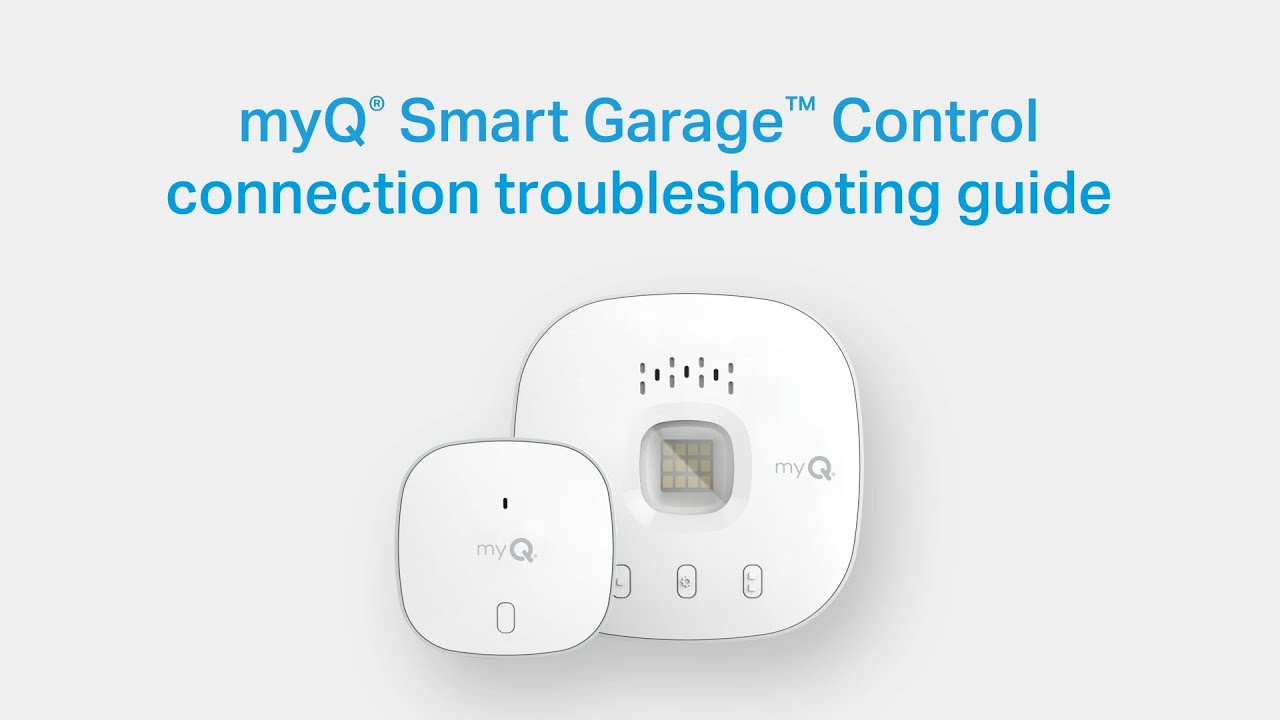
You pull into your driveway after work, open the myQ app, and tap the garage door button. Nothing happens. The door stays shut, the app shows an error, and suddenly your convenient Chamberlain smart garage control feels anything but smart.
This situation is surprisingly common during the initial setup process. Many homeowners install a smart garage controller expecting a quick 15-minute project, only to run into Wi-Fi issues, compatibility problems, sensor pairing failures, or app connection errors. In most cases, the hardware isn’t defective. Instead, the problem usually comes down to network settings, opener compatibility, or a missed installation step.
The good news is that most setup issues can be resolved without replacing equipment or calling a technician. After helping homeowners troubleshoot garage automation systems for years, I’ve found that a handful of recurring problems account for the majority of failed installations.
This guide explains how the Chamberlain Smart Garage Control System works, what commonly goes wrong during setup, and the practical steps you can take to get everything running properly. Whether you’re installing the device for the first time or trying to reconnect a system that suddenly stopped responding, you’ll find solutions that actually work in real-world homes.
What Is Chamberlain Smart Garage Control and How It Works

The Chamberlain Smart Garage Control system is designed to add smartphone control to compatible garage door openers.
Instead of relying solely on a handheld remote, homeowners can open and close the garage door through the myQ app from virtually anywhere with an internet connection.
The system typically includes:
- A smart hub
- A door position sensor
- Mobile app integration
- Wi-Fi connectivity
Once installed, the hub communicates with the garage door opener while the sensor confirms whether the door is open or closed.
How Communication Happens
The process is straightforward:
- The app sends a command.
- The myQ cloud service processes it.
- The smart hub receives the command.
- The garage door opener activates.
- The sensor verifies movement.
If any part of that chain breaks, the system may fail to respond correctly.
Preparing for a Successful Chamberlain Smart Garage Control Setup

A little preparation prevents many common installation issues.
Compatibility Requirements
Before installation, verify that your garage opener supports the system.
Most modern openers manufactured after 1993 work properly because they use photo-eye safety sensors. Older units may require additional accessories or may not be compatible at all.
Check:
- Opener brand
- Manufacturing year
- Safety sensor presence
- myQ compatibility list
One of the most common mistakes homeowners make is purchasing a controller before confirming compatibility.
Wi-Fi Requirements
Wi-Fi quality matters more than many people realize.
For reliable performance:
- Use a 2.4 GHz network when supported
- Maintain a signal strength above -70 dBm
- Ensure stable internet service
Typical indoor Wi-Fi coverage ranges from 100 to 150 feet, but walls, appliances, and construction materials can significantly reduce usable range.
A detached garage located 50 feet from the router may still struggle if multiple brick walls separate the two locations.
Common Chamberlain Smart Garage Control Setup Problems

Many installation failures fall into a handful of predictable categories.
Device Will Not Connect to Wi-Fi
This is perhaps the most common setup complaint.
Why It Happens
Possible causes include:
- Incorrect password
- Weak signal
- Router security settings
- Network incompatibility
How to Fix It
- Verify the network password carefully.
- Move closer to the router during setup.
- Restart the router.
- Retry device pairing.
- Confirm the network is active.
Expected Result
The hub should appear in the app and complete registration successfully.
Garage Door Opener Not Responding

Sometimes setup completes, but the opener refuses to react.
Why It Happens
Common reasons include:
- Incorrect programming
- Compatibility issues
- Signal communication failures
How to Fix It
- Reprogram the opener.
- Confirm compatibility.
- Check wiring connections.
- Test manual opener operation.
Expected Result
The opener should respond consistently to app commands.
Hub Light Flashing Unexpectedly
The LED indicator often provides valuable clues.
Why It Happens
Flashing lights usually indicate:
- Pairing mode
- Communication failure
- Sensor issues
Consult the specific LED pattern guide provided with your model.
Expected Result
After resolving the issue, the LED should return to normal operation.
App Cannot Detect the Device
The myQ app occasionally struggles to find new devices.
Why It Happens
Factors include:
- Bluetooth issues
- Phone permissions
- Network communication errors
How to Fix It
- Enable Bluetooth.
- Enable location permissions.
- Restart the app.
- Reboot the phone.
Expected Result
The device should appear during setup.
Sensor Pairing Problems
The door sensor plays a critical role in safe operation.
Why It Happens
The sensor may:
- Be mounted incorrectly
- Have weak batteries
- Lose synchronization
How to Fix It
- Replace batteries.
- Reposition the sensor.
- Repeat pairing procedures.
Expected Result
The app should accurately display door position.
Fixing Chamberlain Smart Garage Control Connectivity Issues

Many connectivity problems occur after successful installation.
Router Placement
Router location dramatically impacts performance.
If your garage sits 40 to 60 feet from the router and multiple walls separate the spaces, signal strength may fall below reliable levels.
Recommended Improvements
Try:
- Moving the router higher
- Relocating it closer to the garage
- Installing a mesh Wi-Fi node
Even relocating the router one room closer can improve signal quality.
Signal Interference
Interference is often overlooked.
Common sources include:
- Microwave ovens
- Metal shelving
- Electrical panels
- Baby monitors
- Cordless phones
I’ve seen installations fail because the hub was mounted directly beside an electrical breaker panel.
Reducing Interference
Move the hub away from:
- Large metal objects
- High-voltage equipment
- Dense wiring bundles
Network Settings
Router settings sometimes prevent successful communication.
Review:
- Firewall settings
- Device isolation
- MAC filtering
- Security protocols
In many cases, router upgrades trigger connectivity issues because default security settings change automatically.
Fixing myQ App Issues

Sometimes the problem isn’t the hardware at all. Similar troubleshooting applies to Honeywell thermostat problems, where settings, software, or connectivity issues are often mistaken for hardware failures.
Common App Problems
You may notice:
- Missing devices
- Delayed updates
- Login errors
- Frozen screens
Troubleshooting Steps
- Update the app.
- Sign out and back in.
- Clear app cache if applicable.
- Restart the phone.
- Reinstall the application.
Real-World Observation
After major smartphone operating system updates, temporary app compatibility issues occasionally occur until updates are released.
Troubleshooting Smart Garage Door Sensors

The sensor confirms whether the garage door is open or closed.
Without accurate sensor data, remote operation may stop entirely.
Proper Placement
Most sensors work best when:
- Mounted securely
- Positioned vertically
- Installed according to instructions
Battery Life
Typical sensor batteries often last 1 to 2 years depending on usage.
Replace batteries if:
- Status updates become inconsistent
- Pairing repeatedly fails
- Low battery alerts appear
Testing Sensor Performance
Open and close the door several times.
The app should update status within seconds.
How to Reset Chamberlain Smart Garage Control

If all troubleshooting fails, a reset may be necessary.
When to Reset
Consider resetting when:
- Setup repeatedly fails
- The hub disappears from the app
- Connectivity remains unstable
Reset Process
- Remove the device from the app.
- Follow manufacturer reset instructions.
- Restart the setup process.
- Reconnect to Wi-Fi.
- Pair sensors again.
Expected Result
The system should return to factory settings and allow a fresh installation
Real-World Examples of Setup Problems

Example 1: Router Upgrade
A homeowner replaced an older router with a new Wi-Fi 6 model.
Internet service worked immediately, but the garage system disappeared from the app.
The fix was simple: reconnect the controller using the new network credentials.
Example 2: Detached Garage
Another homeowner installed the hub in a detached garage approximately 60 feet from the house.
Signal strength was inconsistent.
Adding a mesh Wi-Fi node solved the problem permanently.
Example 3: Incorrect Sensor Mounting
One installation repeatedly reported incorrect door status.
The sensor had been mounted sideways instead of vertically.
Repositioning it fixed the issue within minutes.
Tips to Improve Long-Term Reliability

Once setup is complete, a few habits can improve performance.
Maintain Strong Wi-Fi Coverage
Review signal strength periodically.
Update Software
Install:
- App updates
- Firmware updates
- Router updates
Check Sensor Batteries Annually
Proactive replacement prevents unexpected failures.
Inspect Hardware
Every few months, verify:
- Secure mounting
- Clean surfaces
- Proper operation
Small maintenance tasks help avoid larger problems.
When to Contact Chamberlain Support

Most homeowners can solve setup issues independently.
However, support may be necessary if:
- The hub never powers on
- Multiple resets fail
- Compatibility remains unclear
- Hardware appears defective
Before contacting support, gather:
- Device model numbers
- Error messages
- Router information
- Opener details
This speeds up diagnosis considerably.
FAQ
Why won’t Chamberlain Smart Garage Control connect to Wi-Fi?
In most cases, weak signal strength, incorrect passwords, and router security settings are the most common causes.
Does Chamberlain Smart Garage Control work with every opener?
No. Compatibility depends on the opener model and manufacturing year.
How far can the hub be from the router?
While Wi-Fi may technically reach 100 to 150 feet indoors, walls and obstacles often reduce reliable range significantly.
Why is the sensor blinking?
Blinking usually indicates pairing mode, low battery conditions, or communication problems.
When should I reset the device?
Resetting should be reserved for situations where standard troubleshooting steps fail.
Conclusion
Most Chamberlain smart garage control setup problems are caused by network issues, compatibility oversights, sensor placement mistakes, or app configuration errors rather than defective hardware.
If your installation isn’t working correctly, start with the basics. First, verify opener compatibility, confirm strong Wi-Fi coverage, check sensor placement, and review app settings. In fact, those simple checks resolve a large percentage of support calls.
For long-term reliability, meanwhile, keep software updated, monitor battery levels, and maintain strong wireless coverage throughout the garage area. Additionally, if setup problems appear after a router replacement or internet upgrade, reconnecting the device to the new network should be one of the first troubleshooting steps.

Leave a Reply