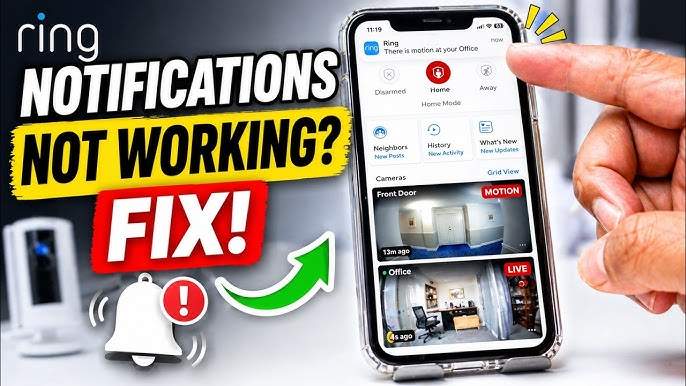
A homeowner receives an alert at 9:17 p.m. showing someone approaching the front porch. The next morning, a package is delivered, a neighbor walks up to the door, and a delivery driver lingers for several minutes. Yet the phone remains silent. When the homeowner opens the security camera app, they discover a message indicating that notifications silenced settings are active.
The camera recorded every event correctly. The issue wasn’t the camera itself. Instead, the alerts never reached the phone.
Situations like this happen more often than many people realize. Modern security cameras rely on several systems working together: motion detection, internet connectivity, cloud services, mobile operating systems, app permissions, and notification delivery networks. A problem in any one of these areas can interrupt alerts.
Fortunately, most notification issues can be diagnosed and fixed without replacing equipment. Understanding why alerts stop arriving is the first step toward restoring reliable monitoring.
What Does “Notifications Silenced” Mean on Security Cameras?

When users see a notifications silenced message, it typically means that alerts generated by the camera are being blocked, filtered, delayed, or suppressed before they reach the mobile device.
This does not necessarily indicate that the camera has stopped recording footage.
In many cases:
- Motion events are still being detected.
- Video clips are still stored.
- Live viewing continues to work normally.
- Only the alert delivery process is affected.
Several systems may suppress notifications:
- Smartphone Focus modes
- Do Not Disturb settings
- Battery optimization tools
- Camera app permissions
- Cloud notification services
- Smart filtering algorithms
Because multiple technologies are involved, troubleshooting requires a systematic approach rather than guessing at the cause.
Common Reasons Security Camera Notifications Get Silenced Automatically

Understanding the root causes can save hours of frustration.
Focus Mode and Do Not Disturb Settings
One of the most common reasons for notifications being silenced involves smartphone Focus modes.
Both Android and iPhone devices allow users to limit interruptions during:
- Sleep schedules
- Work hours
- Meetings
- Driving sessions
After a software update, these settings sometimes become more aggressive than intended.
For example, an iPhone user may allow phone calls but accidentally block all security camera notifications. Meanwhile, Android users may have notification categories disabled automatically when activating Bedtime Mode.
If alerts suddenly stop overnight but resume during the day, Focus settings should be examined first.
Battery-Saving Features
Modern smartphones prioritize battery life aggressively.
Battery optimization systems may:
- Restrict background activity
- Delay push notifications
- Suspend inactive apps
- Limit network access
Security camera applications depend on continuous communication with cloud servers. When battery-saving tools interfere, users may notice delayed or missing alerts.
Many Android devices from Samsung, Xiaomi, OnePlus, and other manufacturers include proprietary power-management systems that can affect notification delivery.
App Permission Changes
Permissions occasionally change after:
- Operating system updates
- App reinstalls
- Device migrations
- Security policy changes
A camera app may lose permission to:
- Send notifications
- Access background data
- Refresh in the background
As a result, motion events occur normally while alerts never appear.
Software Updates and Bugs
Software updates solve many problems but occasionally create new ones.
A newly released version of a camera app may contain bugs affecting:
- Push notification delivery
- Alert scheduling
- Motion-triggered events
- Notification categories
Users frequently report temporary notification issues following major operating system updates.
Therefore, checking recent update history can help identify the source of a problem.
Wi-Fi Connectivity Problems
Reliable alerts depend on reliable internet access.
Even brief connectivity interruptions can cause:
- Delayed notifications
- Missing events
- Synchronization failures
For instance, a camera operating with weak signal strength may upload footage successfully while struggling to send real-time motion events.
If camera alerts arrive inconsistently, network quality should be evaluated.
Camera Firmware Issues
Firmware acts as the camera’s operating system.
Outdated firmware may contain:
- Notification bugs
- Event processing errors
- Cloud synchronization issues
Manufacturers routinely release firmware updates to improve reliability and compatibility.
Checking firmware status should be part of any notification troubleshooting process.
Notification Overload and Smart Filtering
Some security camera systems use intelligent filtering to reduce alert fatigue.
After all, receiving 200 notifications per day from passing cars, moving trees, and neighborhood pets can quickly become overwhelming.
To address this, many platforms prioritize:
- Person detection
- Vehicle detection
- Package detection
- Familiar face recognition
Sometimes these filters become too restrictive, leading users to believe alerts have stopped entirely.
How Different Security Camera Brands Handle Alert Suppression

Each manufacturer approaches alert management differently.
Ring Cameras
Ring cameras provide extensive notification customization.
Users can adjust:
- Motion sensitivity
- Motion zones
- Rich notifications
- Event frequency
However, aggressive motion filtering may unintentionally reduce important alerts.
Arlo Cameras

Arlo offers smart detection features that separate people, vehicles, animals, and packages.
When configured incorrectly, these filters may create situations where notifications silenced, but behavior appears even though motion is being detected.
Reviewing activity zones often resolves the issue.
Google Nest Cameras
Google Nest devices integrate tightly with Android notification systems.
As a result, Focus modes, Digital Wellbeing settings, and notification categories can significantly affect alert delivery.
Nest users should regularly verify both app-level and device-level notification settings.
Blink Cameras
Blink cameras emphasize simplicity.
Most alert issues stem from:
- Weak Wi-Fi signals
- Sync module communication problems
- Mobile app permission settings
Restarting the Sync Module often restores normal operation.
Eufy Security Cameras
Eufy systems provide local and cloud notification options.
Because processing frequently occurs on-device, firmware updates play a major role in maintaining reliable alerts.
Users experiencing recurring notifications silenced messages should verify firmware status first.
How to Restore Alerts When Notifications Silenced Messages Appear

If security camera notifications stop arriving, work through the following steps.
Verify Phone Notification Permissions
Begin with the basics.
On Android:
- Open Settings.
- Select Apps.
- Choose the camera application.
- Tap Notifications.
- Confirm all alert categories are enabled.
On iPhone:
- Open Settings.
- Select Notifications.
- Choose the camera app.
- Enable Allow Notifications.
This simple check solves many notification problems.
Check App Notification Settings
Most security camera apps include their own notification controls.
Verify that:
- Motion alerts are enabled.
- Smart alerts are active.
- Notification schedules are correct.
- User profiles have proper permissions.
Sometimes alerts become disabled inside the app while phone permissions remain active.
Review Focus and Sleep Modes
Many cases involving notifications silenced settings originate from Focus modes.
Review:
- Sleep schedules
- Work Focus profiles
- Driving Focus settings
- Do Not Disturb rules
Add camera applications to the allowed-app list whenever possible.
Update the Camera App

Outdated applications may contain bugs affecting push notifications.
Check for:
- App Store updates
- Google Play updates
- Manufacturer-specific releases
Installing the latest version often restores normal functionality.
Reconnect Network Devices
Network issues can interfere with alert delivery.
Try these steps:
- Restart the router.
- Reboot the modem.
- Reconnect the camera.
- Test signal strength.
Many connectivity-related notification problems disappear after a complete network refresh.
Restart Cameras and Mobile Devices
A simple restart remains one of the most effective troubleshooting methods.
Restart:
- Cameras
- Mobile phones
- Smart hubs
- Sync modules
Temporary software glitches often disappear after a reboot.
Reconfigure Motion Zones
Improper motion zones can dramatically reduce alert frequency.
Review:
- Detection areas
- Activity zones
- Sensitivity settings
- Smart detection filters
Expanding motion coverage may restore missing alerts.
Advanced Troubleshooting Steps
When basic fixes fail, deeper investigation may be necessary.
Firmware Rollbacks
Occasionally, firmware updates introduce new notification bugs.
If alerts stopped immediately after a firmware upgrade, check whether the manufacturer:
- Acknowledges the issue
- Offers a rollback option
- Provides a beta fix
Support forums often reveal emerging firmware-related problems.
Cloud Service Outages
Most security camera notifications rely on cloud infrastructure.
Even when cameras continue recording locally, cloud outages can interrupt:
- Push notifications
- Event synchronization
- Remote access
Checking service status pages can quickly rule out platform-wide issues.
Router Configuration Checks
Advanced router settings sometimes interfere with camera communication.
Potential issues include:
- Firewall restrictions
- DNS configuration errors
- Band steering conflicts
- Network isolation settings
Users with complex home networks should verify router logs when investigating recurring notifications silenced events.
Notification Delivery Delays
Push notifications travel through multiple services before reaching a device.
Delays may occur at:
- Camera servers
- Cloud providers
- Apple Push Notification Service
- Firebase Cloud Messaging
If alerts arrive several minutes late, external delivery infrastructure may be involved.
Preventing Future Notification Problems

Prevention is easier than troubleshooting.
Recommended Notification Settings
For most homeowners:
- Enable person detection.
- Enable package alerts.
- Disable unnecessary motion categories.
- Allow critical notifications.
This balance reduces noise without sacrificing awareness.
Managing Alert Frequency
Too many notifications can cause users to ignore important events.
Instead:
- Create motion zones.
- Lower sensitivity where appropriate.
- Exclude busy streets.
- Exclude moving vegetation.
Reducing false alerts improves long-term reliability.
Scheduling Smart Alerts
Many households benefit from customized schedules.
For example:
- Front door alerts: always active
- Backyard alerts: nighttime only
- Garage alerts: away mode only
Strategic scheduling minimizes unnecessary interruptions.
Testing Notifications Monthly
A quick monthly test can identify issues before a critical event occurs.
Walk through each camera zone and verify:
- Motion detection
- Recording
- Notification delivery
- App functionality
Regular testing helps prevent surprises.
Real-World Examples of Notification Silenced and Fixes

1: The Delivery Alert That Never Arrived
- A homeowner expected a package worth $450.
- The camera recorded the delivery perfectly, but no alert appeared.
- Diagnosis revealed that an iPhone Sleep Focus profile had blocked notifications overnight.
- Solution: Camera alerts were added to allowed notifications, restoring immediate delivery.
2: Excessive Battery Optimization
- An Android user noticed that alerts arrived only when opening the camera app.
- The issue appeared after activating aggressive battery-saving settings.
- Diagnosis showed the app was prevented from running in the background.
- Solution: Battery optimization was disabled for the camera application.
3: Firmware Update Failure
- A homeowner experienced notifications silenced warnings immediately after a firmware update.
- Investigation revealed a known software bug affecting motion-triggered alerts.
- Solution: The manufacturer released a patch two weeks later, restoring functionality.
4: Overly Restrictive Motion Zones
- A user configured a driveway camera to ignore street traffic.
- Unfortunately, the activity zone excluded half of the driveway.
- As a result, visitors approaching from one side generated no alerts.
- Expanding the motion zone corrected the problem immediately.
Frequently Asked Questions

Why do my security camera alerts suddenly stop working?
Common causes include Focus modes, app permission changes, battery optimization settings, network interruptions, and firmware issues.
Why does my phone show notifications silenced for camera alerts?
The notifications silenced message often indicates that your phone or app is intentionally suppressing alerts through Focus settings, notification filters, or app-level controls.
Can Android battery optimization block security camera notifications?
Yes. Battery optimization can restrict background activity and delay push notifications, especially on heavily customized Android devices.
Why am I not receiving motion detection alerts even though recordings exist?
This usually indicates a notification delivery issue rather than a camera recording problem. Check permissions, internet connectivity, and app settings.
Can Wi-Fi problems affect notification delivery?
Absolutely. Weak or unstable connections may delay event uploads and prevent alerts from reaching mobile devices promptly.
Do cloud service outages stop security camera notifications?
Yes. Many systems depend on cloud infrastructure to deliver alerts. An outage can interrupt notifications even if recordings continue.
Why are alerts arriving several minutes late?
Delayed alerts may result from network congestion, cloud service delays, power-saving restrictions, or server-side processing issues.
How can I prevent future notification failures?
Perform monthly testing, keep firmware updated, review notification settings regularly, and avoid overly aggressive battery-saving configurations.
Conclusion
Missing a security alert at the wrong moment can defeat the purpose of having a security camera in the first place. Fortunately, most cases involving notifications silenced warnings have straightforward explanations. Whether the cause is a Focus mode, battery optimization feature, firmware bug, app permission change, or network issue, a structured troubleshooting process usually restores reliable alerts.
By understanding how notification systems work and performing routine maintenance, homeowners can minimize future disruptions and ensure important motion events reach their phones when they matter most. The next time you encounter a notifications silenced message, you’ll know exactly where to start looking and how to bring your alerts back online.

Leave a Reply