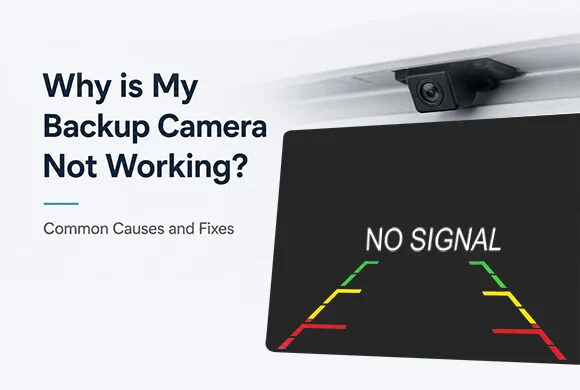
You receive a motion alert from your driveway at 2:14 a.m. Expecting to see who triggered it, you open your security camera app. Instead of live video, you’re greeted by a completely black screen. And you start thinking Why is my back camera not working.
This situation is surprisingly common. Homeowners often assume the camera has failed, but a black screen can be caused by several different issues, ranging from a loose power connection to a corrupted firmware update. The challenge is that many of these problems create identical symptoms.
Knowing how to troubleshoot the issue systematically can save time, prevent unnecessary replacement costs, and restore coverage quickly. In this guide, you’ll learn the most common causes of security camera black screens and how to fix them.
Why Is My Back Camera Not Working? Start With These Basic Checks

Before assuming your camera is defective, perform a few simple checks. In many cases, the problem can be solved in minutes.
Confirm Camera Power
A camera without stable power cannot transmit video.
Check for:
- Power indicator LEDs
- Plugged-in adapters
- Tripped GFCI outlets
- Disconnected power cables
Outdoor cameras often lose power after storms, landscaping work, or accidental unplugging.
Check Camera LEDs
Most security cameras include status lights.
Typical indicators:
- Solid green: operating normally
- Flashing amber: attempting connection
- No light: power problem
- Red light: system fault
Consult your camera manufacturer’s documentation for exact LED meanings.
Verify App Status
Sometimes the camera is working while the mobile application is not.
Try:
- Closing and reopening the app
- Logging out and back in
- Testing from another device
- Checking for app updates
Confirm Internet Connection
Wireless cameras depend heavily on network stability.
Check whether:
- Other smart devices remain connected
- The router is functioning normally
- Internet speeds have dropped significantly
Restart Equipment
A simple reboot often solves temporary software issues.
Restart:
- Camera
- Router
- Network switch (if applicable)
- NVR or DVR system
Many black-screen issues disappear after a complete power cycle.
Why a Security Camera Shows a Black Screen

Not all video failures are identical. Understanding the difference helps narrow down the cause.
Black Screen vs Offline Camera
A black screen means the camera is communicating but failing to provide usable video.
An offline camera means communication itself has failed.
For example:
- Black screen: camera appears online, but video is blank
- Offline camera: camera cannot be reached at all
These situations require different troubleshooting approaches.
Live View Failures
Some cameras continue recording while failing to display live video.
Potential causes include:
- Firmware glitches
- App issues
- Video decoding problems
Recording Failures
If both live view and recordings are unavailable, focus on:
- Power
- Storage devices
- Internal hardware
App Display Problems
Occasionally, the camera functions normally,y but the viewing application fails to render video correctly.
This is particularly common after major app updates.
Why Is My Back Camera Not Working After a Power Outage?

Power outages frequently trigger black-screen complaints.
Router Reboot Problems
Routers sometimes fail to reconnect properly after electricity returns.
Signs include:
- Cameras appearing offline
- Partial network connectivity
- Intermittent video feeds
A router restart is often the first solution.
Camera Reboot Failures
Some cameras become stuck during startup.
Symptoms include:
- Flashing LEDs
- Endless reboot loops
- Blank video streams
Disconnecting power for 60 seconds may resolve the issue.
Corrupted Startup Sequences
Unexpected power loss can interrupt critical processes.
This occasionally affects:
- Firmware
- Recording databases
- Configuration files
Surge-Related Damage
Electrical surges can damage camera components even when devices appear powered.
In real-world service calls, surge damage commonly affects:
- Network ports
- Power regulators
- Image sensors
Repair costs often range from $50 to $200 depending on the model.
Cause #1: Internet or Wi-Fi Connection Loss

Many homeowners asking why their back camera is not working eventually discover a network issue rather than a camera failure.
Wireless cameras are especially vulnerable.
Weak Signal Strength
Signal quality decreases through:
- Brick walls
- Metal siding
- Concrete structures
- Large appliances
A camera may appear connected while struggling to transmit video.
Router Problems
Routers often become overloaded.
Common symptoms include:
- Delayed notifications
- Frozen video
- Frequent disconnects
Rebooting the router often restores performance.
Mesh Network Issues
Mesh systems improve coverage but can occasionally create handoff problems.
Some cameras repeatedly switch between access points, causing unstable video feeds.
Distance Limitations
Manufacturers frequently advertise ideal conditions.
Real-world performance is usually lower.
For example:
A camera rated for 300 feet may struggle beyond 100 feet when walls and interference are present.
Cause #2: Camera Firmware Errors

Firmware acts as the camera’s operating system.
When problems occur, video performance suffers.
Failed Updates
An interrupted update can leave cameras partially functional.
Common symptoms include:
- Black screen
- Missing recordings
- Connectivity issues
Corrupted Firmware
Memory corruption occasionally develops over time.
This may happen because of:
- Power interruptions
- Storage errors
- Software bugs
Reinstalling Updates
Many manufacturers allow manual firmware installation.
If available:
- Download the latest version.
- Follow manufacturer instructions.
- Reinstall firmware completely.
- Restart the camera.
This often restores normal operation.
Cause #3: Mobile App Problems

Sometimes the camera works perfectly while the viewing app creates the illusion of failure.
Outdated App Versions
Manufacturers release updates to maintain compatibility.
Older versions may experience:
- Video playback errors
- Login problems
- Blank screens
Always verify that the app is current.
App Cache Issues
Corrupted cache files can interfere with video rendering.
On Android devices:
- Clear cache
- Restart app
- Test live view again
On iPhones:
- Remove and reinstall the application if necessary
Account Login Problems
Authentication failures occasionally disrupt streaming.
Symptoms include:
- Missing cameras
- Partial access
- No video feed
Logging out and re-authenticating often resolves the issue.
Cause #4: Faulty Video Cable or Network Cable

Physical cabling issues remain a frequent cause of black-screen complaints.
A camera cannot deliver reliable video through a damaged connection.
Ethernet Damage
Outdoor Ethernet cables face constant exposure to:
- Sunlight
- Moisture
- Animals
- Lawn equipment
Even minor damage can create intermittent video failures.
Connector Issues
RJ45 connectors often loosen or corrode over time.
Inspect:
- Bent pins
- Corrosion
- Water damage
- Improper crimps
Replacing a connector is usually inexpensive and straightforward.
Moisture Intrusion
Water entering junction boxes or cable connections can disrupt signal transmission.
Signs include:
- Random disconnects
- Black screens after rain
- Visible corrosion
Weatherproofing vulnerable connections helps prevent recurring failures.
Cause #5: Infrared Night Vision Problems

Many homeowners only notice the problem after dark.
This leads them to ask: why is my back camera not working at night when it functions normally during the day?
Night vision components are often responsible.
Black Screen Only at Night
If daytime images look normal but nighttime footage disappears, focus on the infrared system.
Common causes include:
- Failed IR LEDs
- Faulty IR filter mechanisms
- Power shortages
IR Filter Failures
The IR cut filter moves automatically between day and night modes.
When it becomes stuck:
- Night images may appear black
- Day images may look distorted
- Video may disappear entirely
Lens Obstructions
Spider webs, dirt, and insects frequently interfere with infrared illumination.
Cleaning the lens often produces immediate improvements.
Cause #6: Overheating or Environmental Damage

Outdoor security cameras operate year-round, often in conditions far harsher than most homeowners realize. Excessive heat, freezing temperatures, moisture, and condensation can all contribute to a security camera black screen.
Extreme Heat
Direct sunlight can push camera housing temperatures well above ambient air temperatures.
For example, on a 95°F summer day, a dark-colored camera mounted on a south-facing wall may reach temperatures exceeding 130°F.
Symptoms include:
- Random shutdowns
- Black screens during afternoon hours
- Video lag
- Reduced image quality
Many cameras contain thermal protection systems that temporarily disable operation until temperatures decrease.
Freezing Temperatures
Cold weather can affect:
- Internal circuitry
- Power supplies
- Mechanical IR filters
- Batteries in wireless cameras
If a camera only fails during winter, temperature-related issues should be investigated.
Water Intrusion
Even weather-rated cameras can develop leaks over time.
Common entry points include:
- Damaged gaskets
- Cracked housings
- Improperly sealed cable entries
Moisture inside the housing can short internal components and lead to permanent damage.
Condensation
Condensation is often overlooked during troubleshooting.
A small amount of trapped moisture can fog the lens and interfere with image sensors.
Look for:
- Water droplets inside the lens cover
- Foggy images
- Temporary black screens during temperature changes
Replacing damaged seals usually solves the problem.
Cause #7: Hardware Failure

When all other possibilities have been eliminated, internal hardware failure becomes the most likely explanation.
Sensor Damage
The image sensor is the heart of every security camera.
When it fails, symptoms often include:
- Complete black screen
- Purple or distorted images
- Flickering video
- Permanent image loss
Sensor replacement is rarely economical for consumer-grade cameras.
Internal Board Failures
Modern cameras contain multiple circuit boards responsible for:
- Image processing
- Networking
- Power regulation
- Video transmission
A failed board may leave the camera powered but unable to produce a usable image.
When Replacement Becomes Necessary
Homeowners frequently ask why is my back camera not working after exhausting all troubleshooting options.
If the camera:
- Has stable power
- Has network connectivity
- Has updated firmware
- Has functioning storage
yet still shows no video, replacement may be the most practical solution.
Most residential security cameras have an average lifespan of 5–10 years depending on environmental conditions and build quality.
Why Is My Back Camera Not Working? Advanced Diagnostic Steps

If basic troubleshooting has not solved the issue, advanced diagnostics can help identify the exact cause.
Ping Testing
Many IP cameras respond to network ping commands.
A successful ping confirms:
- Network visibility
- Basic communication
- Device availability
If the device responds but video remains unavailable, the issue likely lies elsewhere.
Device Discovery Tools
Most manufacturers offer discovery software that locates cameras on a network.
These tools can reveal:
- IP address conflicts
- Firmware versions
- Connection status
They are especially useful for large camera systems.
Router Device Lists
Log into your router and review connected devices.
Check whether:
- The camera appears online
- The assigned IP address is correct
- Duplicate addresses exist
An IP conflict can create unpredictable behavior.
Network Diagnostics
For advanced users, network monitoring tools can identify:
- Packet loss
- Bandwidth limitations
- Signal instability
- Communication interruptions
These tools often uncover problems that basic troubleshooting misses.
How to Prevent Security Camera Black Screen Problems

Most camera failures provide warning signs before complete video loss occurs.
A proactive maintenance routine significantly reduces downtime.
Routine Inspections
Every few months, inspect:
- Camera housings
- Wiring
- Connectors
- Mounting hardware
Small problems are easier and cheaper to fix early.
Firmware Updates
Manufacturers regularly release updates that improve:
- Security
- Stability
- Compatibility
- Performance
However, updates should be performed carefully to avoid interruption.
Backup Power
Power outages are responsible for many black-screen incidents.
Consider installing:
- UPS battery backups
- Surge protectors
- Whole-home surge protection
Even a small UPS can keep cameras and networking equipment operational during short outages.
Weather Protection
Outdoor cameras benefit from additional protection.
Consider:
- Sun shields
- Waterproof junction boxes
- Cable covers
- Proper drainage
These measures extend equipment life significantly.
Monthly Testing Schedule
A simple monthly test can prevent unpleasant surprises.
Check:
- Live view
- Recorded footage
- Motion detection
- Notification delivery
Many homeowners discover failures only after an important event occurs.
When to Repair vs Replace a Security Camera

Not every camera problem justifies a replacement.
Understanding repair economics helps make the right decision.
Cost Comparisons
Typical repair costs:
| Issue | Estimated Cost |
| Power adapter replacement | $15–$40 |
| Network cable repair | $20–$75 |
| SD card replacement | $15–$50 |
| Professional service visit | $75–$200 |
| Internal hardware repair | $100–$300+ |
In many cases, replacing an entry-level camera costs less than repairing it.
Age Considerations
A six-month-old camera deserves more troubleshooting effort than a seven-year-old unit.
Older cameras may lack:
- Better night vision
- AI detection features
- Higher resolution
- Improved cybersecurity protections
Warranty Factors
Always verify warranty coverage before spending money on repairs.
Many manufacturers offer warranties ranging from one to three years.
Upgrade Opportunities
If replacement becomes necessary, consider improvements such as:
- 4K resolution
- Color night vision
- Local AI detection
- Automatic cloud backup
- Smart home integration
The upgrade may provide significantly better performance than the original camera.
Frequently Asked Questions
Why does my security camera have power but show a black screen?
Power alone does not guarantee video transmission. Firmware issues, failed image sensors, storage problems, network interruptions, and app errors can all produce a black screen even when the camera appears powered on.
Why is my back camera not working at night?
Night-only failures are often linked to infrared components. Faulty IR LEDs, stuck IR filters, insufficient power, or lens obstructions frequently cause black screens after dark.
Can a bad SD card cause a black screen?
Yes. While uncommon, corrupted storage can interfere with camera operation. Testing the camera with the SD card removed can help isolate the problem.
How do I know if my camera is offline?
Most camera apps display an offline message, unavailable status, or connection error. You may also stop receiving notifications and lose access to live video.
Should I reset my security camera?
A factory reset can solve persistent software issues, but it should generally be used after basic troubleshooting has failed because settings must be reconfigured afterward.
How long do security cameras typically last?
Most residential security cameras last between 5 and 10 years. Environmental exposure, maintenance quality, and hardware design significantly affect lifespan.
When should I replace a camera instead of repairing it?
Replacement is often the better option when repair costs exceed half the price of a comparable new camera or when internal hardware failures occur after several years of service.
Conclusion
A black screen does not automatically mean your security camera has failed. In many cases, the cause is something relatively simple, such as a loose power connection, weak Wi-Fi signal, app malfunction, or storage issue.
If you’re wondering why is my back camera not working, begin with the basics. Verify power, inspect network connectivity, check app functionality, and restart equipment. These steps solve a surprising percentage of problems.
From there, move methodically through firmware, storage devices, cables, night vision components, and environmental factors. More advanced diagnostics can help identify network-related problems, while hardware failures typically become apparent after other possibilities have been ruled out.
The best long-term strategy is prevention. Regular inspections, firmware updates, surge protection, and monthly testing can help ensure your cameras remain ready when you need them most. A few minutes of maintenance each month can prevent the frustration of discovering a black screen during a critical security event.



Leave a Reply