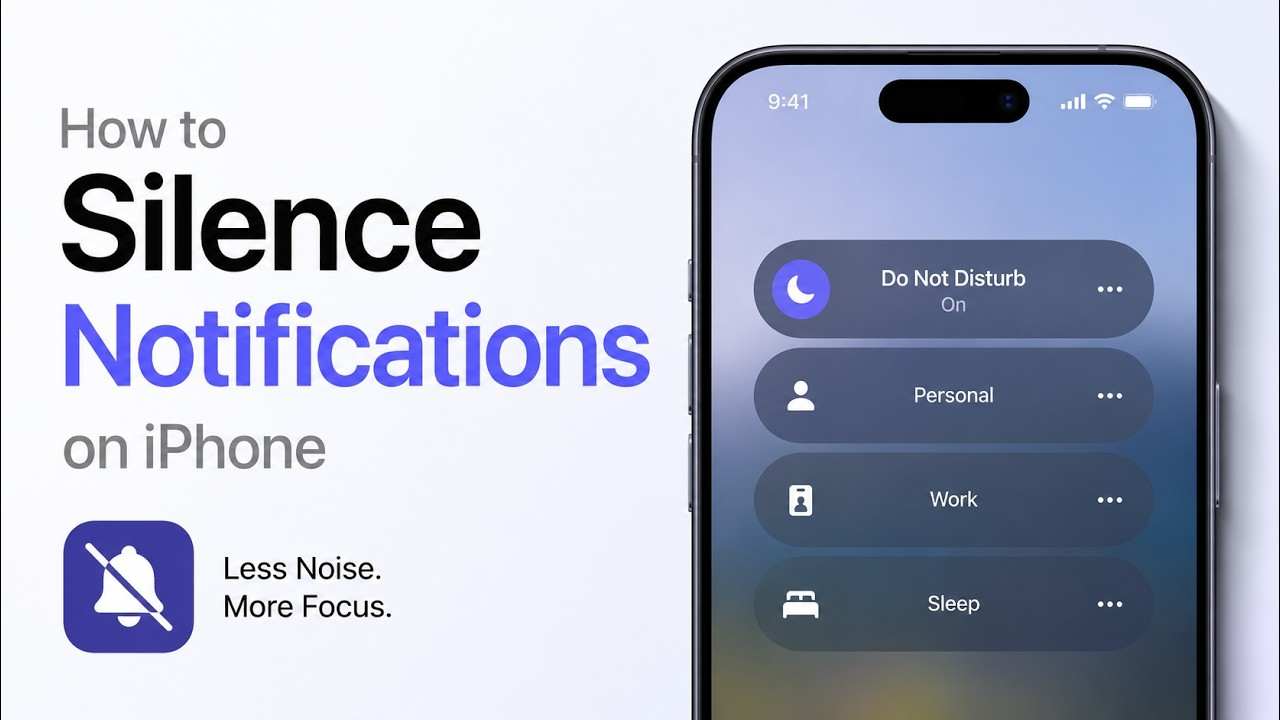
A homeowner installs a video doorbell, two outdoor security cameras, a smart lock, and a connected smoke detector. At first, the system feels impressive. Then the silence notifications iphone begin. Every package delivery triggers an alert. Tree branches moving in the wind activate motion detection. Software updates arrive weekly. Within a month, the phone receives more than 150 notifications per day.
The problem is not simply annoyance. Excessive notifications create a real security risk. When every alert seems important, people gradually stop paying attention. Critical warnings can become buried beneath less important updates, increasing the chance that a genuine security event goes unnoticed.
This challenge is especially common for iPhone users who rely on multiple smart home devices. Fortunately, Apple provides several tools that make it possible to silence notifications iPhone users no longer need while preserving alerts that truly matter.
This guide explains how to separate critical security alerts from unnecessary distractions, configure Focus Modes correctly, use Critical Alerts effectively, and create a notification strategy that improves both convenience and home security.
Why Too Many Notifications Become a Security Problem

Silence Notifications iPhone Fatigue Explained
Researchers have studied the effects of frequent notifications for years. Multiple workplace productivity studies have shown that constant interruptions reduce attention spans, increase task-switching, and lower response quality. While most studies focus on workplace communication, the same principles apply to home security notifications.
Notification fatigue occurs when users become overwhelmed by the volume of alerts arriving throughout the day. As alert frequency increases, the brain naturally begins filtering information. Unfortunately, this filtering process does not always distinguish between important and unimportant notifications.
A homeowner who receives 80 motion alerts every day may eventually ignore all camera notifications. If a genuine security threat occurs, response times may be slower because previous alerts conditioned the user to assume the notification is unimportant.
This phenomenon is often called alert blindness. Similar issues have been documented in healthcare environments, cybersecurity operations centers, and emergency monitoring systems. Too many alerts reduce effectiveness.
Security Alerts Get Lost Among Less Important Notifications
Many smart home systems generate notifications for events that have little security value.
Examples include:
- Motion detected by passing vehicles.
- Smart lock battery reminders.
- Firmware update announcements.
- Promotional app messages.
- Camera connectivity notifications.
Now compare those to alerts that require immediate attention:
- Someone attempting to force entry through a door.
- Smoke detected inside the home.
- A security alarm activation.
- A smart lock unlocking unexpectedly.
Without proper filtering, both categories arrive with similar urgency. Consequently, important warnings become harder to identify quickly.
Understanding Which Security Alerts Actually Matter

The most effective notification strategy starts by categorizing alerts according to their importance.
Critical Alerts
Critical alerts demand immediate attention regardless of the time of day.
Examples include:
- Security alarm activations.
- Smoke detector warnings.
- Carbon monoxide alerts.
- Glass-break sensor activations.
- Verified break-in attempts.
- Water leak emergency notifications.
These alerts should always bypass Focus Modes, Silent Mode, and notification summaries whenever possible.
Important But Non-Emergency Alerts
These alerts provide useful information but rarely require an immediate response.
Examples include:
- Package deliveries.
- Front door motion events.
- Smart lock activity.
- Garage door opening notifications.
- Visitor detections from video doorbells.
These notifications should remain visible but may not require sounds or vibration.
Alerts That Can Usually Be Muted
Many notifications add little value to daily security monitoring.
Examples include:
- Marketing messages.
- Promotional offers.
- Product recommendations.
- Device usage tips.
- Routine software announcements.
Most homeowners can safely move these alerts into scheduled summaries.
| Alert Type | Priority Level | Recommended Action |
| Smoke detector warning | Critical | Immediate notification |
| Carbon monoxide alert | Critical | Immediate notification |
| Alarm activation | Critical | Immediate notification |
| Smart lock unlock event | High | Immediate notification |
| Doorbell ring | High | Immediate notification |
| Package delivery | Medium | Visible alert |
| General motion detection | Medium | Filter when possible |
| Firmware update | Low | Scheduled summary |
| Promotional messages | Low | Disable completely |
How to Silence Notifications iPhone Without Losing Critical Alerts

Many users make the mistake of turning off notifications entirely. A better approach is selective management.
Use Focus Modes Correctly
Apple’s Focus Modes allow users to control which apps and contacts can interrupt them during specific situations.
Personal Focus
Personal Focus works well during evenings and weekends. Most entertainment and social notifications can be restricted while allowing security apps to remain active.
Work Focus
During work hours, distractions can be reduced without blocking security alerts. Allow camera apps, alarm monitoring apps, and emergency notifications while limiting nonessential communication.
Sleep Focus
Sleep Focus is where many homeowners accidentally block important alerts. Configure Sleep Focus carefully so smoke detectors, alarm systems, and security monitoring apps continue to notify you.
A properly configured Focus Mode is one of the best ways to silence notifications iPhone users find distracting while maintaining protection.
Allow Security Apps Through Focus Filters
Most major security platforms can be granted special permissions within Focus settings.
Common examples include:
- Ring
- Arlo
- Nest
- Eufy
- Alarm.com
- Monitoring provider applications
These apps should generally remain on the allowed list, especially if they support emergency notifications.
For example, a homeowner may block social media notifications after 10 p.m. while still allowing smoke detector alerts and front door activity notifications.
Customize Silence Notifications iPhone Settings Per App.
Every security application should be reviewed individually.
Check the following settings:
- Lock Screen notifications.
- Notification Center visibility.
- Banner style.
- Sound settings.
- Badge notifications.
This process helps silence notifications iPhone owners no longer need without disabling entire security systems.
For instance, a driveway camera may keep visual notifications enabled while disabling sounds. Meanwhile, a smoke detector app should retain both visual and audible alerts.
Using Critical Alerts on iPhone for Security Apps

What Are Critical Alerts?
Critical Alerts are a special Apple notification category designed for urgent situations.
Unlike standard notifications, Critical Alerts can:
- Bypass Silent Mode.
- Override Focus Modes.
- Play sounds even when the phone is muted.
Apple limits this capability to approved applications because of its importance.
Which Security Apps Support Critical Alerts?
Support varies by manufacturer and app version. However, many security-related applications provide some form of Critical Alert functionality.
Common categories include:
- Professional alarm monitoring systems.
- Smoke detector applications.
- Carbon monoxide monitoring devices.
- Medical emergency notification systems.
- Advanced home security platforms.
Always verify support within the app’s notification settings.
How Critical Alerts Override Silent Mode
Imagine a homeowner sleeping with the phone on silent mode.
A standard motion alert might remain unnoticed until morning. A smoke detector warning configured as a Critical Alert, however, can still produce a sound immediately.
This distinction can dramatically improve emergency response times.
Best Notification Setup for Security Cameras

Not every camera should generate the same type of alert. A front door camera serves a different purpose than an indoor camera monitoring a hallway. Adjusting notification settings based on location helps reduce unnecessary interruptions while preserving security awareness.
Front Door Cameras
Front door cameras often capture the most important activity around a home.
Recommended settings:
- Enable doorbell ring alerts immediately.
- Enable person detection alerts.
- Disable general motion notifications if available.
- Keep lock screen and sound notifications active.
For example, a delivery driver approaching the porch is usually worth knowing about. However, notifications triggered by passing vehicles on a nearby street may create unnecessary noise.
Driveway Cameras
Driveway cameras can generate large numbers of alerts, especially in busy neighborhoods.
Recommended settings:
- Enable vehicle detection.
- Enable person detection.
- Limit notifications to activity zones.
- Disable generic motion detection when possible.
A properly configured driveway camera can reduce daily alerts by more than 50% while still reporting meaningful activity.
Backyard Cameras
Backyard cameras often experience frequent motion events from pets, wildlife, and weather conditions.
Recommended settings:
- Use person-only notifications.
- Restrict activity zones.
- Disable notifications for distant movement.
- Review AI detection accuracy regularly.
These adjustments help silence notifications iPhone users receive from harmless backyard activity while maintaining awareness of potential intruders.
Indoor Cameras
Indoor cameras should be treated differently because activity inside the home often has greater significance.
Recommended settings:
- Enable alerts when nobody should be home.
- Use Home and Away modes.
- Enable sound notifications for unexpected movement.
- Integrate with smart lock status when possible.
For example, an indoor motion alert at 2:00 a.m. may deserve more attention than a driveway alert during daylight hours.
How to Reduce False Motion Alerts

False alerts are one of the biggest causes of notification fatigue. Fortunately, modern camera systems offer several ways to improve detection accuracy.
Activity Zones
Activity zones allow homeowners to define areas where motion matters.
For example:
- Include the front walkway.
- Include entry doors.
- Exclude roads and sidewalks.
- Exclude neighboring properties.
This simple adjustment often produces the largest reduction in unwanted notifications.
Person Detection
Many modern cameras use artificial intelligence to distinguish people from other moving objects.
Benefits include:
- Fewer weather-related alerts.
- Reduced pet notifications.
- Better security relevance.
- Improved response rates.
A camera that identifies people specifically delivers more useful information than one that reports every movement equally.
Vehicle Detection
Driveway cameras benefit significantly from vehicle detection technology.
Instead of receiving dozens of motion alerts, users receive notifications only when:
- A car enters the driveway.
- A vehicle remains parked unexpectedly.
- A delivery vehicle arrives.
This feature can dramatically reduce notification volume.
Smart AI Filtering
Advanced security systems now classify events such as:
- Person detected.
- Package detected.
- Animal detected.
- Vehicle detected.
- General motion detected.
Users can then prioritize which categories generate alerts.
For example, a homeowner may choose notifications for people and packages while ignoring animals and general motion. This strategy helps silence notifications iPhone users find distracting while preserving meaningful security information.
Advanced Ways to Silence Notifications iPhone More Effectively

Once basic settings are optimized, several advanced iPhone features can further improve notification management.
Scheduled Notification Summaries
Scheduled Summaries group non-urgent notifications into designated delivery times.
Good candidates include:
- Product announcements.
- Firmware updates.
- Marketing messages.
- Device tips.
Rather than receiving these notifications immediately, users can review them once or twice per day.
This approach is an effective way to silence notifications iPhone users rarely need in real time.
Time-Sensitive Notifications
Time-Sensitive Notifications sit between normal alerts and Critical Alerts.
These notifications can:
- Break through notification summaries.
- Receive priority treatment.
- Appear more prominently on the lock screen.
Examples include:
- Doorbell activity.
- Unexpected smart lock events.
- Package deliveries.
Many homeowners find this level of urgency ideal for everyday security monitoring.
Location-Based Focus Modes
Location triggers can automatically activate Focus Modes.
Examples include:
- Work Focus activates at the office.
- Home Focus activates upon returning home.
- Sleep Focus activates overnight.
This automation reduces manual management and ensures security apps remain configured appropriately.
Automation Using Shortcuts
Apple Shortcuts can automate complex notification workflows.
Examples include:
- Enable indoor camera alerts when leaving home.
- Disable indoor camera alerts upon arrival.
- Trigger notification changes based on time.
- Adjust security settings during vacations.
These automations help silence notifications iPhone owners receive unnecessarily while maintaining protection when it matters most.
Managing 100+ Daily Silence Notifications iPhone

Consider a homeowner with the following devices:
- Video doorbell.
- Two driveway cameras.
- Smart lock.
- Garage door sensor.
- Indoor security camera.
- Smoke detector.
Initially, the system generated approximately 120 notifications per day.
Daily breakdown:
- 60 motion alerts.
- 20 vehicle detections.
- 15 package notifications.
- 10 software updates.
- 15 miscellaneous messages.
Important alerts frequently became buried among routine notifications.
The homeowner made several changes:
- Created activity zones.
- Enabled person detection.
- Disabled promotional messages.
- Configured Focus Modes.
- Activated Critical Alerts where available.
- Moved firmware updates to scheduled summaries.
Results after two weeks:
- Total daily notifications dropped from 120 to 34.
- False alerts decreased by nearly 70%.
- Doorbell response times improved.
- Emergency alerts remained fully active.
- No important security event was missed.
This example demonstrates how strategic configuration can improve both convenience and security.
Recommended Silence Notifications iPhone Strategy for Most Homeowners

Most people do not need dozens of notification rules. A simple framework often works best.
Critical Alerts Checklist
Keep immediate notifications enabled for:
- Smoke detectors.
- Carbon monoxide detectors.
- Alarm activations.
- Break-in alerts.
- Water leak emergencies.
Important Alerts Checklist
Keep visible notifications enabled for:
- Doorbell rings.
- Person detection.
- Smart lock activity.
- Garage door events.
- Package deliveries.
Low-Priority Alerts Checklist
Move these into summaries or disable them:
- Promotional content.
- Product suggestions.
- Device tutorials.
- Routine maintenance reminders.
Weekly Review Checklist
Once per week:
- Review missed alerts.
- Check notification volume.
- Verify camera AI accuracy.
- Update activity zones.
- Test emergency notifications.
This framework helps silence notifications iPhone users receive unnecessarily while maintaining awareness of important home security events.
FAQ
1. How do I silence notifications on iPhone but still receive security alerts?
Use Focus Modes and allow trusted security applications as exceptions. Additionally, enable Critical Alerts whenever supported by the app.
2. Can security camera alerts bypass Do Not Disturb?
Some alerts can. Apps that support Critical Alerts or Time-Sensitive Notifications may bypass standard Do Not Disturb restrictions.
3. What are Critical Alerts on iPhone?
Critical Alerts are high-priority notifications approved by Apple that can override Silent Mode and Focus settings for urgent situations.
4. Should I disable all motion notifications?
Generally, no. Instead, reduce unnecessary alerts using activity zones, person detection, and AI filtering.
5. How many security alerts are too many?
There is no universal number, but many homeowners experience notification fatigue when receiving more than 50-100 security-related alerts daily.
6. Can Focus Mode block alarm notifications?
Yes, if configured incorrectly. Always verify that alarm and emergency applications are allowed through Focus settings.
7. Which camera notifications are most important?
Person detection, doorbell rings, unexpected indoor activity, and verified security events usually deserve the highest priority.
8. How often should notification settings be reviewed?
A monthly review works well for most households. However, settings should also be reviewed after installing new devices or changing security routines.
Conclusion
Managing smart home notifications is not about receiving fewer alerts at any cost. The goal is to receive the right alerts at the right time. Excessive notifications create distraction, reduce responsiveness, and increase the risk that critical warnings go unnoticed.
By using Focus Modes strategically, enabling Critical Alerts, creating activity zones, and filtering unnecessary motion events, homeowners can dramatically reduce notification overload. At the same time, they can preserve visibility into alarm activations, smart lock activity, smoke detector warnings, and other high-priority events.
The most effective approach is to regularly review notification settings and adjust them based on real-world experience. If you take the time to properly silence notifications iPhone users commonly find distracting, your phone becomes a more effective security tool rather than another source of noise. Start by reviewing your camera and alarm apps today, and you’ll likely notice a safer, less stressful notification experience within a few days.
Leave a Reply