A homeowner turn off Do Not Disturb on iPhone before going to bed because late-night group chats and app notifications have become annoying. At 2:17 a.m., a security camera detects movement near the side gate. A few minutes later, a smart water leak sensor reports moisture near the water heater. Both alerts are delivered to the iPhone, but neither produces a sound. The homeowner discovers the notifications the next morning while checking emails.
Situations like this happen more often than many people realize. Modern iPhones offer powerful notification controls through Do Not Disturb and Focus Modes. While these tools are excellent for reducing distractions, they can also prevent important home security notifications from getting immediate attention if configured incorrectly.
Many homeowners assume emergency alerts automatically bypass Do Not Disturb. In reality, that depends on app permissions, Focus settings, and notification priorities. Simply choosing to turn off Do Not Disturb on iPhone is not always the best solution. Instead, understanding how these features work allows you to reduce interruptions without sacrificing security.
This guide explains how Do Not Disturb affects security systems, which alerts are most likely to be blocked, and how to configure your iPhone so that critical warnings continue to reach you when they matter most.
Understanding How Turn Off Do Not Disturb on iPhone

Apple’s notification management has evolved significantly over the years. What started as a simple Do Not Disturb feature has become a much more advanced system centered around Focus Modes.
Traditional Do Not Disturb vs Modern Focus Modes
Earlier versions of iOS offered a straightforward Do Not Disturb setting. Users enabled it, and most notifications remained silent until the mode was disabled.
Modern iPhones use Focus Modes, which provide greater customization. Users can create separate profiles for:
- Work
- Sleep
- Personal time
- Driving
- Fitness activities
Each profile can allow specific apps and contacts while silencing others.
This flexibility is useful, but it also increases the chances of accidentally blocking important security notifications.
Which Notifications Can Be Blocked
Depending on your settings, Focus Modes can suppress:
- Camera notifications
- Smart lock alerts
- Doorbell notifications
- Motion detection alerts
- Monitoring app notifications
- Messages from family members
The notifications often still arrive on the device. However, they may not produce sounds or vibrations, or provide immediate lock screen visibility.
For a security event, even a short delay can be significant.
Why Security Alerts Are Often Affected
Many security apps use standard notification permissions rather than Critical Alerts.
As a result:
- Motion alerts may be delayed.
- Doorbell rings may be silenced.
- Smart lock activity may go unnoticed.
- Leak detection alerts may remain hidden until later.
This is one reason some users choose to turn off Do Not Disturb on iPhone devices after experiencing missed notifications. However, there are better solutions that preserve productivity while maintaining security awareness.
Why Home Security Alerts Sometimes Fail During Do Not Disturb

Not all security alerts behave the same way. Understanding which notifications are vulnerable helps homeowners make better decisions.
Security Camera Motion Alerts
Motion notifications generate the highest volume of security alerts.
For example:
- A tree branch moves.
- A vehicle passes nearby.
- An animal enters the yard.
Most camera systems classify these as standard notifications. Consequently, Focus Modes may suppress them.
While many of these alerts are low priority, some represent genuine security concerns.
Video Doorbell Notifications
Video doorbells often provide critical information.
Examples include:
- Unexpected visitors.
- Package deliveries.
- Solicitors approaching the property.
- Suspicious activity near the front entrance.
If Do Not Disturb silences these alerts, homeowners may lose opportunities to respond in real time.
Smart Lock Activity Alerts
Smart lock notifications frequently indicate:
- Doors being locked.
- Doors being unlocked.
- Access code usage.
- Failed entry attempts.
An unexpected unlock event deserves immediate attention. Unfortunately, many users do not realize these notifications can be affected by Focus settings.
Smoke and Carbon Monoxide Warnings
These alerts are among the most important notifications a homeowner can receive.
Fortunately, some systems support Critical Alerts. However, not every smoke detector app uses this capability.
Before relying on a notification, homeowners should verify exactly how their system behaves when Focus Modes are active.
Water Leak Detection Alerts
Water damage claims cost homeowners billions of dollars annually.
Smart leak sensors can provide early warnings for:
- Burst pipes.
- Water heater failures.
- Appliance leaks.
- Frozen plumbing systems.
A delayed leak notification may result in significantly higher repair costs.
Signs You Need to Turn Off Do Not Disturb on iPhone for Security Reasons
Sometimes the easiest way to identify a problem is by recognizing the warning signs.
Missed Overnight Notifications

A common indicator appears when users wake up and discover multiple overnight security notifications they never heard.
Examples include:
- Camera detections.
- Doorbell activity.
- Sensor warnings.
Repeated incidents suggest your Focus settings require adjustment.
Delayed Camera Alerts

Some homeowners receive alerts minutes after an event occurs.
In testing environments, delayed notifications often result from:
- Focus restrictions.
- Notification summaries.
- Connectivity issues.
If delays become frequent, it may be necessary to turn off Do Not Disturb on iPhone temporarily while troubleshooting.
Alarm Notifications Appearing Hours Later

Alarm events should never appear several hours after activation.
If alarm alerts consistently arrive late, investigate:
- Focus settings.
- Notification permissions.
- Monitoring app configuration.
The issue often lies within notification management rather than the alarm system itself.
How to Turn Off Do Not Disturb on iPhone Without Losing Productivity

Some users immediately disable Do Not Disturb after missing alerts. While that works, it often reintroduces unnecessary distractions.
A more balanced approach is usually better.
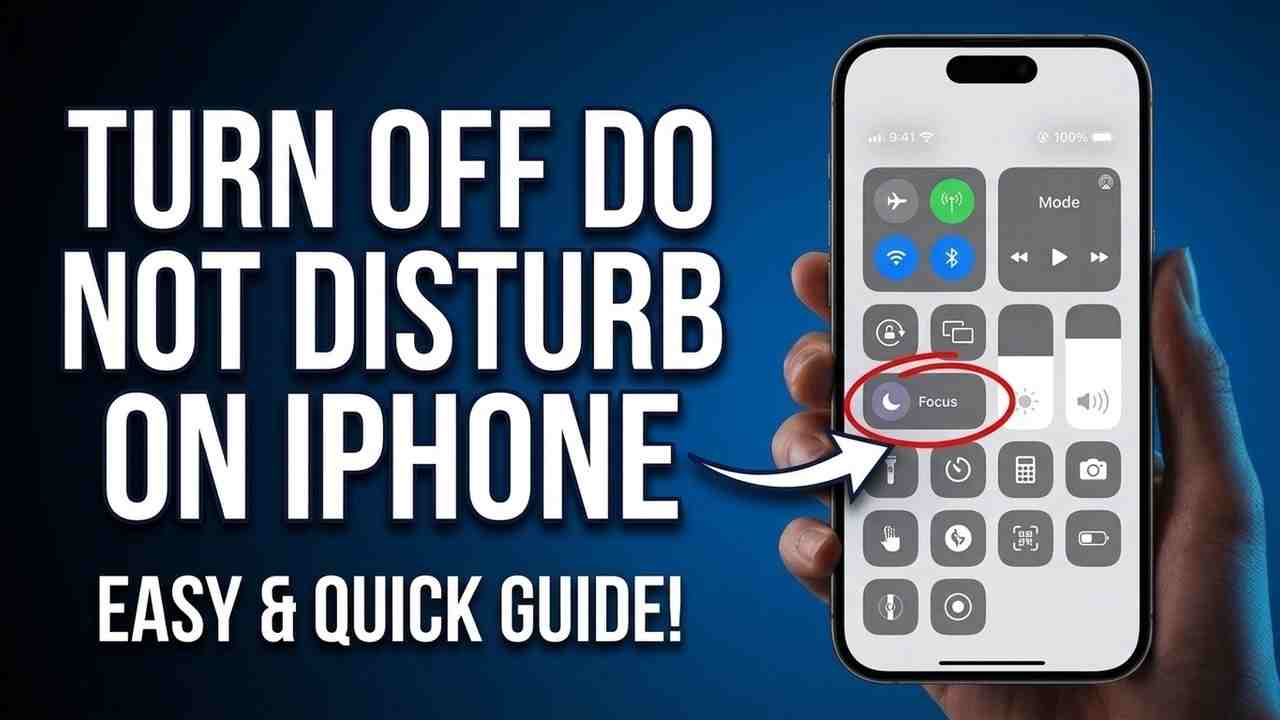
Manually Disabling Do Not Disturb
To disable Do Not Disturb:
- Open Control Center.
- Tap the Focus icon.
- Select the active Focus Mode.
- Turn it off.
This instantly restores normal notification behavior.
Many users initially turn off Do Not Disturb on iPhone devices while investigating missed security notifications.
Reviewing Focus Mode Settings
Instead of permanently disabling Focus, review each profile individually.
Check:
- Allowed apps.
- Allowed contacts.
- Time schedules.
- Automation triggers.
Small adjustments often solve the problem.
Checking Allowed Apps
Every Focus Mode includes an app exception list.
Security-related applications should generally be included.
Examples:
- Ring
- Arlo
- Nest
- Eufy
- Alarm monitoring apps
This approach provides better protection than simply choosing to turn off Do Not Disturb on iPhone completely.
Checking Allowed Contacts
Emergency contacts deserve special treatment.
Consider allowing:
- Household members.
- Trusted neighbors.
- Monitoring services.
- Property managers.
These exceptions ensure important communications bypass restrictions.
Critical Alerts: The Feature Every Homeowner Should Enable

Critical Alerts are one of the most valuable yet underused iPhone notification features for home security.
What Are Critical Alerts?
Critical Alerts are notifications that Apple allows to bypass:
- Silent Mode
- Focus Modes
- Do Not Disturb
- Notification Summaries
They are reserved for situations that require immediate attention.
Examples include:
- Smoke alarms
- Carbon monoxide warnings
- Security breaches
- Medical emergencies
- Water leak emergencies
Because of their importance, only approved applications can use Critical Alerts.
How Critical Alerts Override Silent Mode
Imagine your phone is:
- In Sleep Focus
- On silent
- Face down on a bedside table
A standard motion alert may remain unnoticed until morning.
A Critical Alert can still:
- Produce a sound
- Vibrate
- Display prominently
This capability significantly increases the chance that urgent events receive immediate attention.
Which Security Apps Support Critical Alerts
Support varies by manufacturer and software version.
Categories commonly supporting Critical Alerts include:
- Professional alarm monitoring systems
- Smart smoke detectors
- Carbon monoxide monitoring devices
- Water leak monitoring systems
- Some advanced security camera platforms
Always verify support directly within the application settings.
How to Enable Critical Alerts
To check whether an app supports Critical Alerts:
- Open Settings.
- Select Notifications.
- Choose the security app.
- Look for “Critical Alerts.”
- Enable the option if available.
After enabling Critical Alerts, test the system to verify functionality.
How Security Camera Notifications Should Be Configured

Every camera location serves a different purpose. Notification settings should reflect that purpose.
Front Door Cameras
Front door cameras often provide the highest-value notifications.
Recommended settings:
- Doorbell rings enabled
- Person detection enabled
- Package detection enabled
- General motion reduced where possible
For many households, these notifications deserve immediate delivery.
Driveway Cameras
Driveway cameras frequently generate excessive alerts.
Recommended settings:
- Enable vehicle detection
- Enable person detection
- Use activity zones
- Reduce general motion notifications
This approach lowers alert volume while preserving useful information.
Indoor Cameras
Indoor camera notifications generally deserve higher priority.
Unexpected indoor movement may indicate:
- Unauthorized access
- Children returning home
- Pet activity
- Security concerns
Many homeowners configure indoor camera alerts to remain active regardless of Focus status.
Vacation Home Cameras
Vacation properties require special consideration.
Recommended settings:
- Enable all person detection alerts
- Enable smart lock activity notifications
- Enable water leak alerts
- Enable environmental monitoring alerts
Because nobody is physically present, notification reliability becomes even more important.
Common iPhone Settings That Accidentally Block Security Alerts

Do Not Disturb is not the only setting capable of delaying important notifications.
Notification Summary
Scheduled Summary bundles selected notifications and delivers them later.
While useful for social apps, it can create problems if security applications are included.
A package theft alert arriving three hours late provides little value.
Review your summary settings carefully.
Silent Mode
Many users assume Silent Mode affects only sounds.
Depending on app configuration, important alerts may become easier to overlook.
Critical security notifications should not rely solely on visual delivery.
Sleep Focus
Sleep Focus is one of the most common causes of missed overnight alerts.
Users often enable Sleep Focus without reviewing:
- Allowed apps
- Allowed contacts
- Time-sensitive permissions
As a result, overnight security events may remain unnoticed.
Low Power Mode
Low Power Mode can limit background activity.
In some cases, delayed background refresh affects how quickly apps process notifications.
While this does not usually block alerts completely, it can contribute to delays.
App Notification Permissions
A surprising number of notification issues originate from simple permission settings.
Check:
- Sounds
- Lock Screen access
- Notification Center access
- Time-Sensitive Notifications
- Critical Alerts
Many homeowners discover they do not actually need to turn off Do Not Disturb on iPhone because a notification permission was misconfigured.
Recommended Notification Setup for Most Homeowners

A simple framework works better than complicated rules.
Critical Alerts
Keep immediate alerts enabled for:
- Smoke detectors
- Carbon monoxide detectors
- Alarm activations
- Water leak sensors
- Emergency monitoring systems
These notifications should bypass all Focus restrictions whenever possible.
Important Alerts
Keep visible alerts enabled for:
- Doorbell rings
- Person detection
- Smart lock activity
- Garage door events
- Package deliveries
These events typically require awareness but not always immediate action.
Low-Priority Alerts
Move these into summaries or disable them:
- Promotional messages
- Product announcements
- Marketing content
- Device tips
- Non-urgent updates
Reducing low-value alerts helps prevent notification fatigue.
Monthly Review Checklist
Once each month:
- Test alarm notifications.
- Review Focus settings.
- Verify Critical Alerts.
- Check emergency contacts.
- Audit notification volume.
- Test camera alerts.
Regular reviews help identify problems before they cause missed alerts.
FAQ

Should I turn off Do Not Disturb on iPhone completely?
Usually not. Most homeowners benefit more from properly configuring Focus exceptions and Critical Alerts than disabling Do Not Disturb entirely.
Can Do Not Disturb block security camera alerts?
Yes. Depending on your settings, camera notifications may be delayed, silenced, or hidden until Focus Mode ends.
What notifications should bypass Focus Mode?
Emergency alerts, alarm activations, smoke detector warnings, carbon monoxide alerts, and water leak notifications should generally bypass Focus restrictions.
What are Critical Alerts?
Critical Alerts are special notifications approved by Apple that can override Silent Mode, Focus Modes, and Do Not Disturb settings.
Can smoke detector alerts bypass silent mode?
Many smart smoke detector systems support Critical Alerts, allowing warnings to bypass silent settings.
Why do camera alerts arrive late?
Common causes include Notification Summary, Focus restrictions, poor connectivity, battery optimization settings, and app configuration issues.
Does Sleep Focus block security notifications?
It can. Unless security apps are allowed or use Critical Alerts, Sleep Focus may suppress important notifications.
How often should I review notification settings?
Review them monthly and after installing any new security device or changing your home automation setup.
Conclusion
Do Not Disturb and Focus Modes are valuable tools for reducing distractions, but they can create unintended security risks when configured incorrectly. A silenced camera alert, delayed leak notification, or blocked alarm warning may prevent homeowners from responding quickly when every minute matters.
The solution is not always to immediately turn off Do Not Disturb on iPhone devices. Instead, focus on creating smart exceptions, enabling Time-Sensitive Notifications, activating Critical Alerts where available, and reviewing notification permissions regularly.
A well-configured iPhone should deliver the alerts that matter most while filtering out unnecessary noise. Spend a few minutes reviewing your security apps today, and you’ll gain greater confidence that critical home security alerts can still reach you when they are needed most.
Leave a Reply